
 Joshua Inciso
How Telemedicine Transforms the Patient-Doctor Relationship
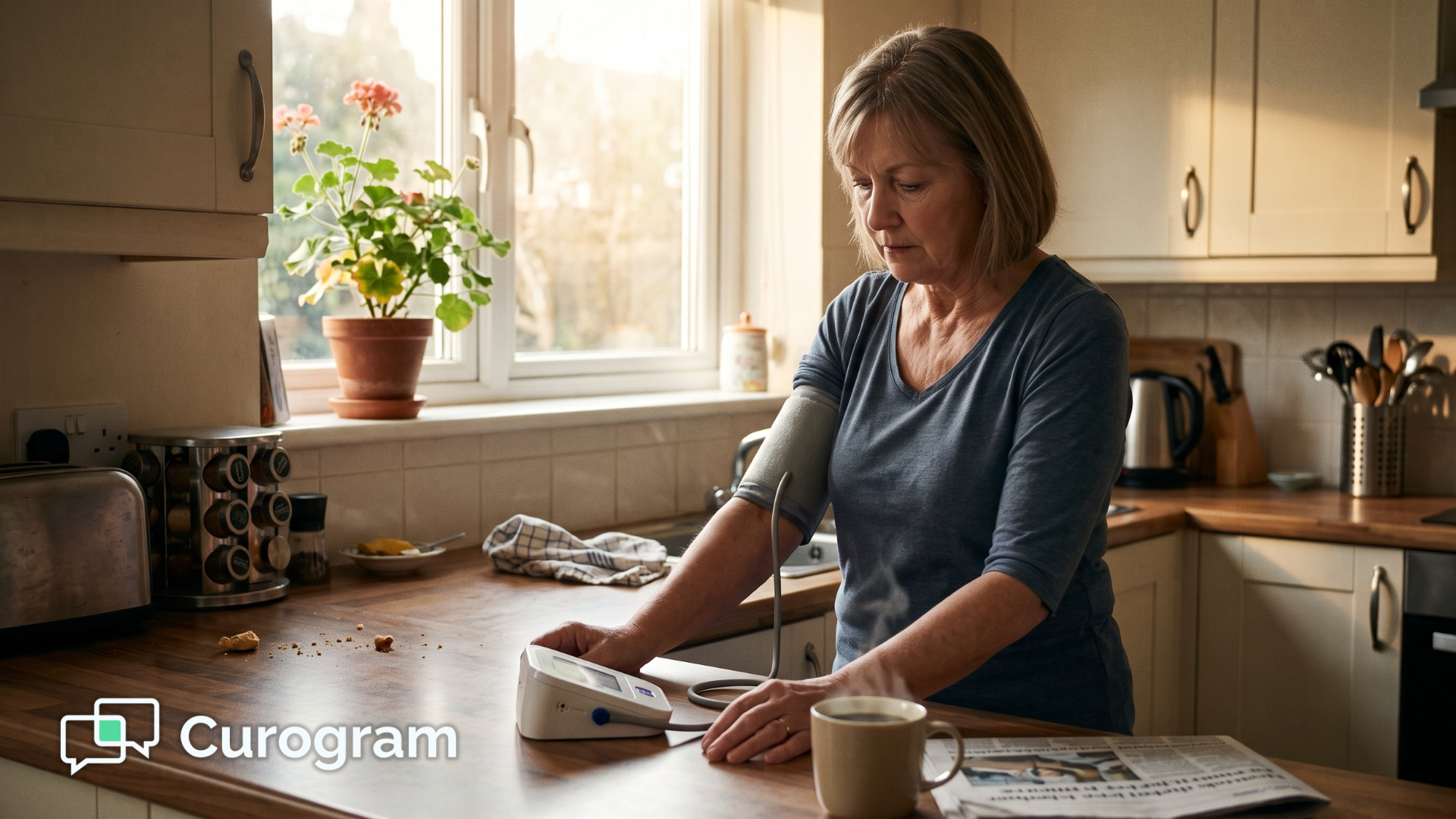
Strengthen the patient-doctor relationship with telemedicine that lets patients text, join video visits, and send readings from home. Book a Curogram...
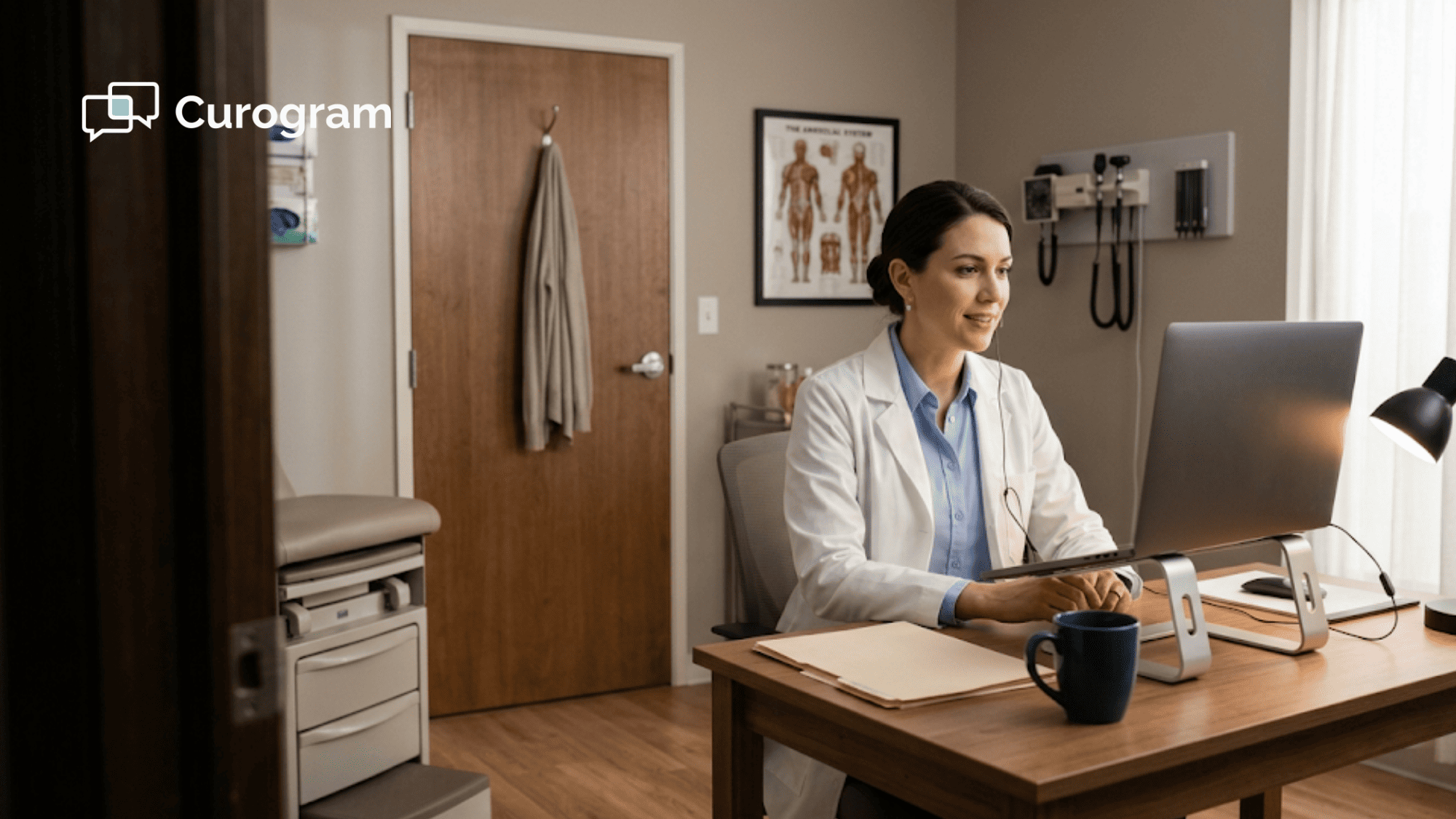
A video visit usually fails before it starts. The patient taps the link, lands on an app download screen, and calls your front desk instead. Your medical assistant spends the appointment slot walking them through a password reset while the provider waits.
Setting up a virtual medical office is mostly a set of decisions you make before the first visit. Five of them matter: which room you use, what equipment goes in it, which platform meets HIPAA rules, how patients get into the call, and which visit types move to video.
Hardware is the short part. A laptop, a camera at eye level, a wired earbud, and a desk lamp pointed at a light-colored wall cover most of it. You probably own three of those four already.
The software decision has one hard rule attached. If the vendor won't sign a Business Associate Agreement with your practice, the platform is off the table, whatever its video quality looks like.
Where setups fall apart is the handoff. Nobody assigned the link-sending, so it happens twice or not at all. Nobody decided what to do when the video drops at minute four, so the provider redials while the patient sits on a dead screen.
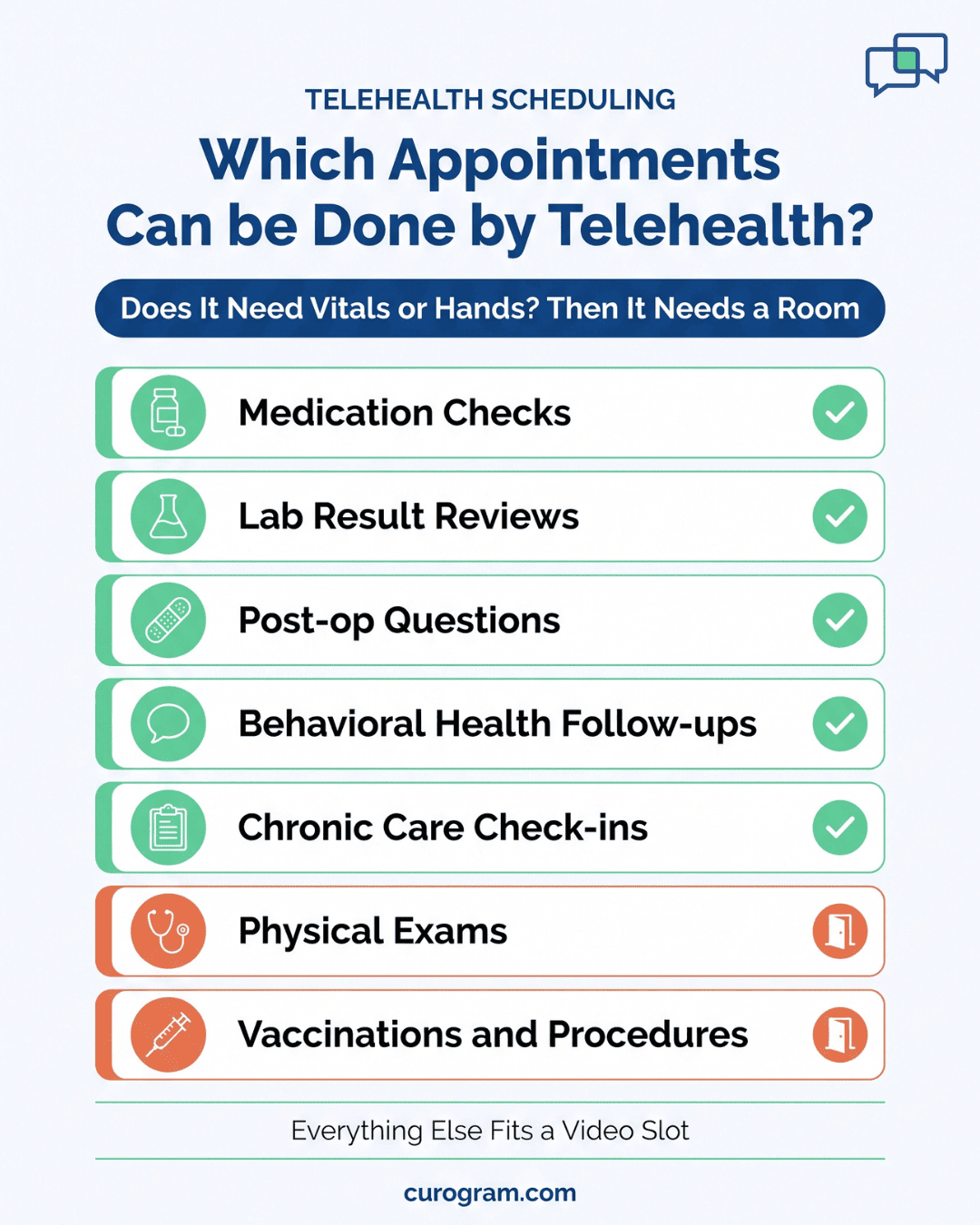
Which visits belong on video is the other decision that pays off later. Medication checks and lab result reviews rarely need vitals. Physical exams and vaccinations can't happen through a screen. Sorting that out before you launch keeps your exam rooms open for the patients who need them.
Order matters. Testing your connection after you've bought equipment tells you nothing useful about the room you'll actually sit in.
Most of the equipment for a virtual medical office is already on your desk. Five steps get you running, and the order matters. Each step catches a problem the next one can't.
Run a speed test from the exact room where you'll see patients, not from the front desk. Upload speed is the number that counts. It carries your video out to the patient, and it's almost always smaller than the download figure your internet plan advertises.
Test twice: once early, once around mid-morning when staff are in the EHR and patient phones are on the guest Wi-Fi. If the second number drops hard, your calls will freeze during clinic hours, not during your test. Run an ethernet cable to the room if the walls allow it. Wired connections hold steady when the Wi-Fi doesn't.
You need three things: a computer, a camera, and a microphone. Most laptops have a camera and a microphone built in already.
If your laptop mic sounds thin or picks up keyboard noise, plug in a set of wired earphones and use the mic on the cord. It sits closer to your mouth, so patients hear you clearly.
Desktop PCs usually need a separate camera and speakers. Some cameras have a microphone built in, which saves you a purchase.
Then raise the camera to eye level. Stack it on a few books if you have to. A laptop sitting flat on the desk points up at the ceiling and gives every patient the same view of your chin.
Your platform has to be HIPAA-compliant, and that means the vendor signs a Business Associate Agreement with you. Consumer video apps without a signed BAA don't qualify, no matter how good the picture is.
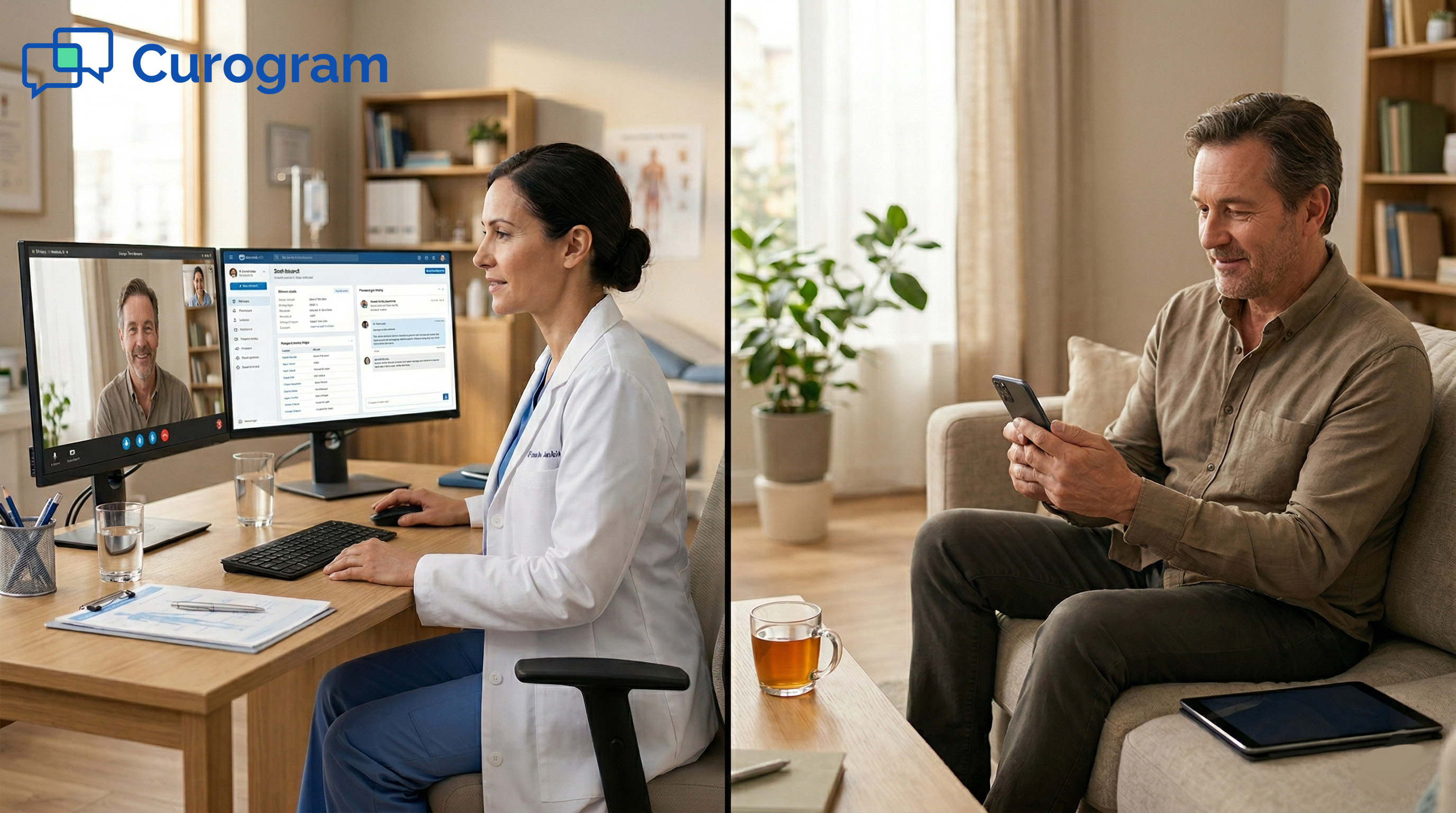
Once you're on the right platform, you can run live video visits and share images or documents on screen mid-call.
Good telemedicine software also connects with your practice management system and works with your electronic health records, so visit notes land where your staff already looks for them.
The visit itself is one piece. Most of the patient contact happens around it:
| Capability | What it replaces |
|---|---|
| 2-way text messaging | Phone tag before and after the visit |
| Survey and rating requests | Manual follow-up calls for feedback |
| Electronic patient forms | Paper clipboards and scanned PDFs |
| Online appointment booking | Front desk time spent on scheduling calls |
Curogram covers all four alongside video visits. Book a demo and we'll show you how it fits your current setup.

Put your main light source in front of you, roughly at eye level. A window works if you face it. A desk lamp bounced off a light-colored wall works too.
Avoid sitting with a bright window at your back. Cameras adjust to the brightest thing in frame, so the window wins and your face turns into a silhouette. Overhead office lighting alone tends to throw shadows under your eyes.
Then check the other direction. Lighting that's too harsh makes patients squint at the screen, and dim lighting means they can't read your expression at all. Open your platform's camera preview before your first visit and adjust until you can see your own face clearly.
Patients expect the same privacy they'd get in an exam room. Office chatter, a ringing desk phone, or a conversation in the hallway all break that expectation, and they make it harder for patients to follow what you're telling them about their health.
Pick a room with a door that closes and put a sign on it during visit blocks. Forward your desk phone to voicemail. Silence desktop notifications, since those alert chimes land straight in the patient's ear through your microphone.
Sound carries both ways. A room where patients can hear your staff is also a room where your staff can hear the patient's chief complaint.
Virtual care moves the appointment to wherever the patient already is. No parking, no lobby, no half-day off work for a 12-minute follow-up. That matters most for rural patients, who may drive an hour each way for a visit that a video call could have handled.
Your staff feel it too. Heavy days wear people down, and worn-down teams drop the small things patients notice most: the callback nobody made, the intake form nobody sent. Virtual slots take some of that load off the schedule.
Telehealth shortens the queue in two places. Patients stop arriving 20 minutes early and stacking up in the waiting room. And when your 9:40 runs long, the 10:00 is sitting in their kitchen with a phone, not watching your front desk apologize.
That changes what a delay costs you. A patient who waits at home rarely walks out, so the slot still gets billed. Your front desk also stops fielding the "how much longer?" question every few minutes, which frees them for check-ins and payment collection.
Short virtual visits absorb the work that clogs an in-person schedule. Medication checks, lab result reviews, and post-op questions rarely need an exam room. Move those to video, and your in-person blocks open up for visits that actually need the patient in front of you.
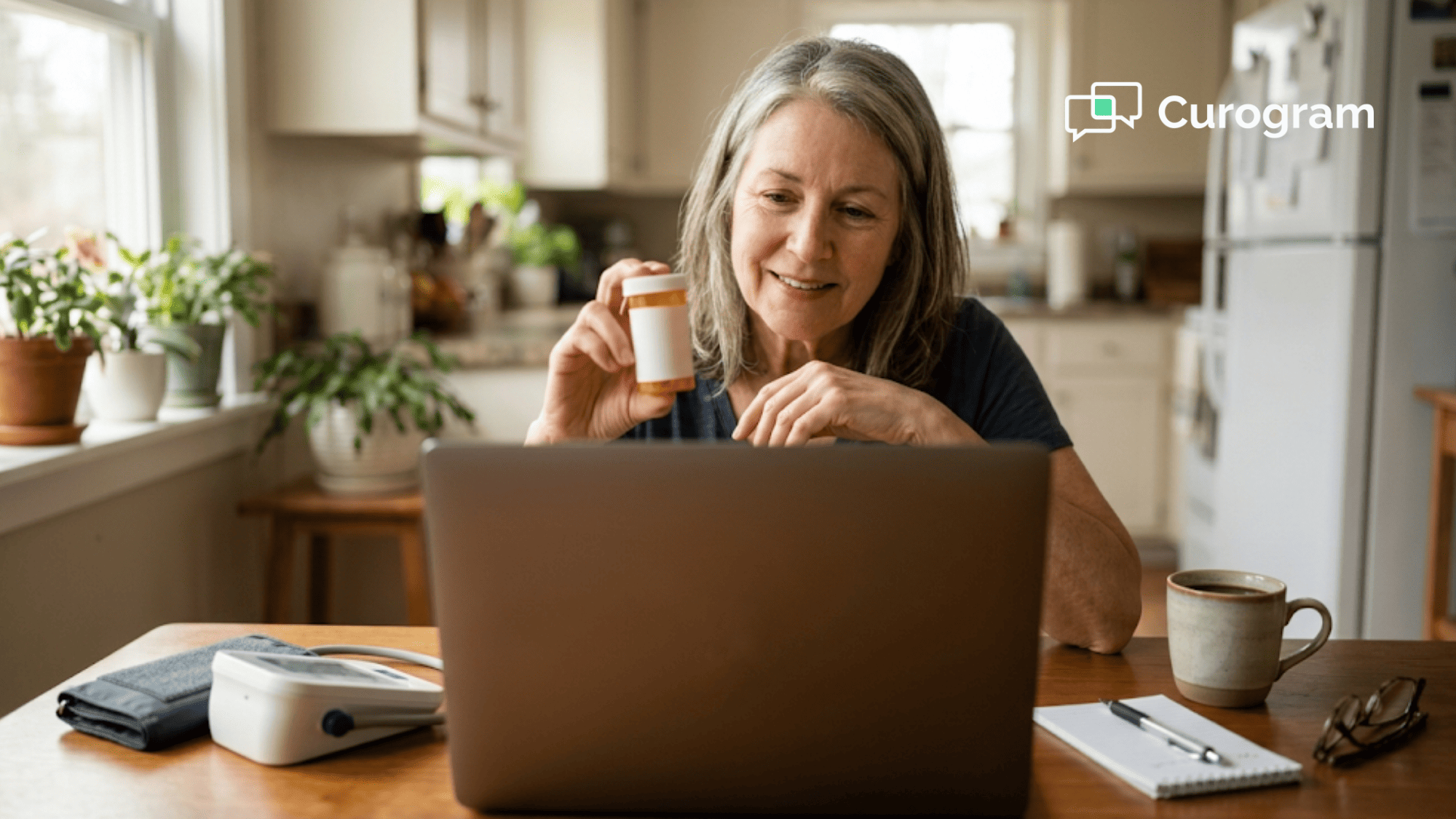
Distance stops deciding who gets seen. A patient two counties away joins from home. Someone on vacation can still get a rash looked at instead of waiting until they're back and hoping it holds.
This is the difference between a follow-up that happens and one that gets postponed twice and then forgotten. Patients don't skip care because they stopped caring. They skip it because the drive, the time off, and the childcare add up to more than the visit seems worth.
Access also depends on how easy it is to start. A patient who has to download an app, make an account, and remember a password will call your front desk instead. A text link that opens the visit in a browser removes every one of those steps.
A patient with a fever who joins by video isn't sitting three feet from your 78-year-old on chemo. That's the real gain: fewer sick people breathing the same air in a small room, especially from October through March.
Your team benefits from the same math. Every respiratory complaint routed to video is one less exposure for the staff who have to keep the schedule running. A front desk out sick for a week costs more than the visit that caused it.
Triage the ones that need a room. A patient describing chest pain or dehydration needs hands and vitals. A patient with a cough and a known history often doesn't.
Most of the work in setting up a virtual medical office is deciding which visits belong on video. Pick one room first. Test its upload speed during clinic hours, not at 7 a.m. when nothing else is on the network.
Then choose two visit types to move over. Medication checks and lab result reviews are the usual starting pair, since neither needs vitals or an exam. Run those on video for a month before you expand the list.
Most setup problems trace back to the handoff. Decide who sends the link, what happens when a patient can't get in, and who calls when the video drops. Assign each of those three to a person by name before your first visit.
HIPAA is the part with no workaround. Your platform vendor signs a Business Associate Agreement, or the platform doesn't touch patient care. That rule holds for free tiers and paid ones alike.
Patients judge your virtual medical office by how easy it is to join. A text link that opens in a browser gets a 74-year-old into the visit on the first try. An app download plus a password reset sends that same patient to your front desk for help.
Your camera and your lighting take an afternoon to sort out. Your workflow takes a few weeks of real visits, and it's the part that decides whether telemedicine sticks in your practice or quietly falls off the schedule by spring.
Curogram runs HIPAA-compliant video visits through a text link, with two-way messaging, digital forms, and online booking around them. Book a demo and we'll show you how it fits the schedule you already run.
Strengthen the patient-doctor relationship with telemedicine that lets patients text, join video visits, and send readings from home. Book a Curogram...
 Jo Galvez : 4/12/26, 9:00 AM
Discover how Curogram enhances telemedicine with HIPAA-compliant communication, appointment reminders, and integrated patient engagement features.
 Carylee Gali : 4/4/22, 7:00 AM
Telehealth helps establish patient engagement and expands care beyond the office using video conferences, SMS, and remote patient monitoring (RPM).