


Skip to the main content.

22 min read

Telemedicine Technology Stack: What You Need for Virtual Care

Telemedicine Technology Stack: What You Need for Virtual Care
💡 Setting up a telemedicine program means putting the right tools in place before you see your first virtual patient. Your telemedicine technology requirements include a HIPAA-compliant video platform, reliable broadband, a webcam and headset, and a device that runs modern software.

For most practices, this also means connecting your telehealth platform to your existing electronic medical record (EMR) so notes, prescriptions, and lab results stay in one place. Patients need a smartphone, tablet, or computer with a stable internet connection.

Security tools like end-to-end encryption and multi-factor login protect patient data. The right virtual care technology does not have to be expensive or complicated — it just needs to match the size and needs of your practice.


A patient opens their phone, taps a link, and is face-to-face with their doctor in seconds. No traffic, no waiting room, no parking. That is what good virtual care looks like when the right tools are in place.

But here is the reality many practices face: they want to offer virtual visits, yet they are not sure where to start. What devices do you need? What software is required? How fast does your internet have to be? These questions can feel overwhelming, especially when you are already busy running a practice.

The good news is that building a solid telemedicine setup is simpler than it sounds. You do not need a huge budget or an IT department. You need a clear picture of what each layer of your virtual care technology does and why it matters.

This guide walks you through every part of the telemedicine technology requirements that matter for your practice. From video platforms and hardware to security tools and remote monitoring devices, you will find practical guidance that fits practices of all sizes.

We will also show you how the right telehealth software needs connect to your day-to-day workflow, so virtual visits feel just as smooth as in-person ones.

Whether you are launching your first virtual care program or upgrading what you already have, this guide gives you a complete, honest look at what it takes to do telemedicine well.


Essential vs. Nice-to-Have Technology Components

Not every practice needs the same setup. The tools that work for a solo family doctor are very different from what a large multi-site clinic requires. Before spending money, it helps to know what is truly essential and what is just a bonus.

Minimum Viable Technology Stack

This is the baseline. With these tools, you can legally and safely run virtual visits. You need a HIPAA-compliant video platform, a computer or tablet with a working camera and microphone, a broadband internet connection of at least 5 Mbps, and a way to document the visit (ideally in your EMR). That is your floor. Everything else builds on top of this.

Budget for this tier typically runs between $50 and $200 per month for a solo provider, mostly covering the video platform subscription. Many practices already own the hardware needed to get started.

Who This Tier Works For

This level is best for solo providers or very small practices doing a low volume of virtual visits each week. If you see fewer than 10 telehealth patients per week, the minimum stack will likely meet your needs without stretching your budget.

ROI Timeline

Practices at this tier can expect to recover their investment within one to three months. Virtual visits reduce overhead costs tied to in-person care, and patients who can attend remotely are less likely to cancel or no-show. Based on our internal data, practices using automated reminders alongside virtual visits see no-show rates drop significantly.

Standard Recommended Stack

The standard stack adds tools that make virtual care smoother for both staff and patients. On top of the basics, this includes a dedicated external webcam, a quality headset, integrated scheduling and reminders, digital intake forms, and basic EMR integration. This is the sweet spot for most small to mid-size practices.

Monthly costs at this tier range from $200 to $600, depending on how many providers use the platform and which add-ons you choose. The investment pays off quickly when you factor in time saved on phone calls and manual paperwork.

Adding Patient Communication Tools

At this level, patient communication tools become very important. Automated appointment reminders, pre-visit instructions sent by text, and digital consent forms all reduce the work your front desk handles before each visit. These tools also lower no-show rates, which directly protects your revenue.

EMR Integration at This Tier

Connecting your telehealth platform to your EMR is one of the most valuable upgrades you can make. It removes the need to log visit notes in two places and keeps your patient records accurate. Look for platforms that offer native integration or open API access to your specific EMR.

Advanced and Enterprise Stack

Large practices, multi-site groups, and specialty clinics often need more. The advanced stack includes remote patient monitoring (RPM) devices, multi-provider scheduling systems, dedicated IT security monitoring, advanced analytics, and full EHR workflow integration. This tier is built for high-volume environments.

Budget for an enterprise setup ranges widely, from $1,000 to over $5,000 per month depending on practice size, number of providers, and the complexity of integrations needed. However, the ROI for large groups is strong, often showing measurable revenue gains within six months.


Video Conferencing Platform Requirements

The video platform is the center of your telemedicine setup. Every other tool connects to or around it. Choosing the right one means looking beyond price and considering compliance, ease of use, and how well it fits your workflow.

HIPAA-Compliant Platforms: Required Features

Not all video tools are built for healthcare. A platform that meets telehealth platform requirements must offer end-to-end encryption, a signed Business Associate Agreement (BAA), no recording of sessions without consent, and strong access controls. Using a general video chat app that does not meet these standards puts your practice at legal risk.

Required features to look for include: session encryption, role-based access, audit logs, automatic session timeout, and the ability to disable recording. If a vendor cannot provide a signed BAA, move on.

What to Ask a Vendor Before You Sign

Ask vendors directly: Do you sign a Business Associate Agreement? What encryption standard do you use? Can patients join without downloading an app? These questions help you filter out platforms that are not built for clinical use. The answers should be fast and clear — if a vendor hedges, that is a warning sign.

Popular Telemedicine Platforms Compared

There are dozens of platforms on the market, each with strengths for different practice types. Below is a comparison of commonly used options.

Platform

HIPAA BAA

EMR Integration

Patient App Required

Starting Price (Monthly)

Zoom for Healthcare

Yes

Limited (API)

No

$200+

Doxy.me

Yes

No native

No

Free / $35+

Teladoc Health

Yes

Yes (select EMRs)

Yes

Custom

VSee

Yes

Yes (HL7/FHIR)

No

$49+

Curogram Telemedicine

Yes

Any EMR

No

Contact for pricing


Prices and features change often, so always verify directly with the vendor before making a decision.

Integration Capabilities with EMR

A platform that talks to your EMR saves your staff real time every day. The best integrations pull patient data into the visit automatically, push notes back to the chart after the visit, and sync appointment status without manual entry. Look for platforms that support HL7 or FHIR standards for the most flexible connectivity.

If your current EMR does not support a native integration, look for a platform with an open API or a middleware solution that can bridge the gap. Many practices use communication platforms like Curogram to connect their telemedicine visits to their EMR and patient messaging in one place.

Ease of Use for Patients

A platform that is hard to use will drive patients away from virtual care. The best options let patients join a visit from a browser link, with no app download required. Look for platforms with a simple waiting room experience, clear instructions, and the ability to test audio and video before the visit starts.

Reliability and Uptime

Your virtual care setup is only as good as the platform running it. Look for vendors that publish uptime data — ideally 99.9% or higher. Ask about their support response time and what happens if the platform goes down mid-visit. A backup plan, like a phone call fallback, should always be part of your workflow.


Hardware Requirements for Providers

Your equipment directly affects how professional and smooth your virtual visits feel. Poor video, choppy audio, or bad lighting can shake a patient's trust, even when the clinical care is excellent. Getting the hardware right does not require a big budget.

Computer and Laptop Specifications

For virtual visits, you need a computer that can handle video calls without lag. At minimum, aim for an Intel Core i5 (or equivalent) processor, 8 GB of RAM, and a 64-bit operating system. Windows 10, macOS 10.13, or newer versions work well with most telehealth platforms. Older machines may struggle with video quality, especially if you are running other programs at the same time.

Desktop vs. Laptop

A desktop offers more power and a stable setup, but a laptop gives you flexibility to move between rooms or work remotely. For most providers, a laptop with a docking station is the best of both worlds. Whatever you choose, make sure it runs your telehealth platform and EMR at the same time without slowing down.

Webcam Quality Requirements

Your built-in laptop camera may work in a pinch, but a dedicated external webcam makes a real difference. The minimum for virtual care is 720p resolution, but 1080p is preferred. A 1080p webcam produces a sharper, more natural image that feels more personal for patients. Brands like Logitech and Razer offer reliable options in the $60 to $150 range.

Position your webcam at eye level. A camera that points up at you or sits off to the side looks unprofessional and can make communication harder. A small mount or stand can fix this easily.

Lighting for Video Visits

Good lighting matters as much as camera quality. A ring light or a simple LED panel placed in front of you removes shadows and makes you look clear and approachable on screen. Avoid sitting with a bright window behind you, as it will turn you into a silhouette. A $30 to $80 ring light is one of the best investments you can make for your virtual care setup.

Microphone and Headset Recommendations

Clear audio builds trust. Patients need to hear you clearly to follow your instructions and feel at ease. A USB headset with a noise-canceling microphone is the safest choice because it blocks background noise from your office. Brands like Plantronics, Jabra, and Logitech make reliable headsets for clinical use, typically priced between $50 and $150.

If you prefer to work without a headset, a standalone USB microphone placed on your desk also works well. The key is to avoid relying solely on your laptop's built-in microphone, which picks up room echo and background sounds.

Monitor Setup

Dual monitors are highly recommended for telehealth providers. One monitor shows the video call, and the other displays the patient chart or EMR. This setup lets you maintain eye contact with the patient (by keeping the video window near your webcam) while still reviewing their record. A second monitor typically costs between $100 and $300 and can be added to almost any desktop or laptop setup.

Mobile Device Considerations

Some providers prefer to use a tablet or smartphone for virtual visits, especially for quick follow-ups. If you go this route, use a device with at least a 10-inch screen for a comfortable view of both the video call and any notes you need to reference.

iPads and Android tablets work well with most major telehealth platforms. Use a stand to keep the device stable and at eye level during visits.


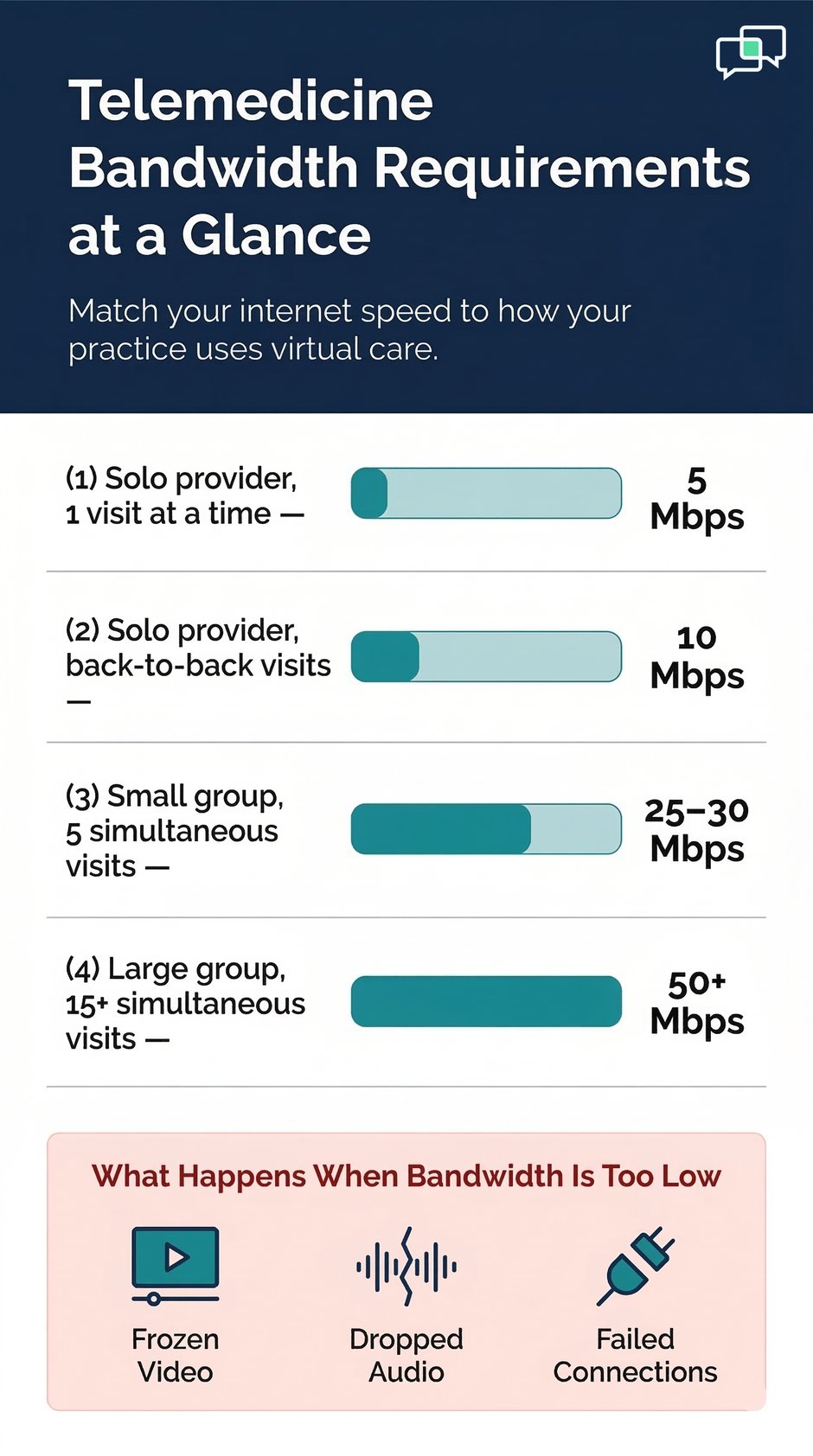
Infographic showing telemedicine bandwidth requirements for four different provider scenarios


Hardware Requirements for Patients

Your patients come with a wide range of devices, comfort levels, and internet access. Building a telemedicine setup that works for most of them, not just the tech-savvy ones, is key to keeping virtual visits accessible and effective.

Minimum Device Specifications

Patients can join most telehealth visits from a device they already own. The minimum requirement is a smartphone, tablet, or computer made in the last five to seven years, with a working camera, microphone, and speaker. The device needs to run a modern browser (Chrome, Safari, Firefox, or Edge) or support the telehealth platform's app.

Smartphone vs. Tablet vs. Computer

Smartphones are the most common device patients use for virtual visits. They are portable, easy to use, and nearly everyone has one. Tablets offer a larger screen, which can be helpful for older patients or those with vision issues. Computers, especially laptops, provide the most stable experience but are less common for on-the-go access. The best approach is to support all three and let patients choose what works for them.

Accommodating Low-Tech Patients

Not every patient is comfortable with technology. Some may be elderly, have limited digital skills, or use older devices. To support these patients, offer simple, step-by-step join instructions sent by text or email before the visit. Short video tutorials can also help. Consider setting aside a few minutes before the visit for a tech check-in call to walk the patient through the process.

The goal is to make virtual care accessible to everyone. A patient who cannot get into the waiting room never gets the care they need.

Loaner Device Programs

Some practices, especially those serving underserved communities, offer loaner tablets or smartphones to patients who do not have a compatible device.

These programs require an upfront investment in devices and a simple process for sanitizing and returning them, but they can dramatically expand your reach. Partnering with local nonprofits or community health organizations can help fund these programs.

Public Access Considerations

Some patients may rely on public Wi-Fi at a library, community center, or coffee shop to join virtual visits. While public networks carry some privacy risks, they are often the only option available.

Advise patients to use a private browser window and find a quiet, private space before starting the visit. Choosing a telehealth platform that uses end-to-end encryption adds an extra layer of protection even on public networks.

Preparing Patients Before the Visit

Pre-visit preparation reduces technical problems during the call. Send patients a reminder with a direct join link, a quick checklist (charge your device, find a quiet spot, test your camera), and a number to call if they have trouble connecting. Platforms like Curogram can automate these pre-visit messages, which saves your front desk time and helps patients show up ready.


Internet and Bandwidth Requirements

A stable internet connection is one of the most important parts of your virtual care setup. Without enough bandwidth, video calls freeze, audio drops out, and visits fall apart. Understanding what you need, and what your patients need, prevents most of these problems before they start.

Minimum Bandwidth for Telehealth

For a single video visit, you need at least 3 Mbps upload and download speed. Most telehealth providers recommend 5 Mbps or higher for a smooth, high-definition visit. If you run multiple visits at the same time, or have staff also using the internet during clinic hours, you will need more. A shared office network handling 5 concurrent video calls should have at least 25 to 30 Mbps available.

Testing Your Connection

Before going live with virtual visits, test your connection using a free tool like Speedtest.net or Fast.com. Run the test during your busiest hours to get a realistic picture of your available bandwidth. If your speed falls below 5 Mbps consistently, contact your internet provider about upgrading your plan. The cost difference between plans is usually small compared to the disruption a poor connection causes.

Wired vs. Wireless Connection

A wired ethernet connection is always more reliable than Wi-Fi for video calls. It reduces lag, eliminates signal drops from interference, and provides a more consistent speed. If possible, connect your primary telehealth workstation directly to your router with an ethernet cable. For rooms where a cable is not practical, a Wi-Fi 6 router can provide fast, stable wireless performance.

Managing Multiple Visits

If your practice runs several virtual visits at the same time, bandwidth management becomes important. Prioritize your telehealth devices using your router's Quality of Service (QoS) settings so that video calls get bandwidth priority over less critical traffic like software updates. Some routers let you set this up with just a few clicks in the admin panel.

Backup Internet Connection Strategy

Even reliable internet goes down sometimes. Having a backup plan prevents a total visit disruption. A 4G or 5G mobile hotspot is a practical and affordable backup option. Most smartphones can double as hotspots in a pinch. Keep a hotspot device or a mobile-enabled tablet charged and ready at your front desk for emergencies.

Patient Bandwidth Considerations

Your patients need a connection of at least 3 Mbps to join a video visit comfortably. When a patient calls in with connection problems, walk them through basic fixes: move closer to their router, close other apps and browser tabs, and try switching from Wi-Fi to a wired connection or mobile data. Having a simple troubleshooting script at your front desk can resolve most patient connection issues in under two minutes.


EMR Integration and Clinical Workflow Tools

A telehealth platform that works in isolation creates more work, not less. When your virtual care tools connect to your EMR, your clinical workflow stays intact and your team spends less time on data entry and more time on patients.

The Advantages of EMR-Integrated Telehealth

When telehealth is built into your EMR or connected through an integration layer, visit notes flow directly into the patient chart. Appointment history, prescriptions, and lab results are all accessible during the virtual visit without switching between systems.

This reduces errors, saves time, and keeps the clinical record complete. It also makes billing easier, since visit data is already documented in the system you use for claims.

Based on our internal research, practices with integrated telemedicine and communication workflows report significantly lower rates of documentation errors and missed follow-up tasks compared to those using standalone platforms.

HL7 and FHIR Standards

Most modern EMRs support HL7 or FHIR data standards. When choosing a telehealth platform, look for one that uses these standards to exchange data. HL7 has been around longer and is widely supported. FHIR is newer, more flexible, and increasingly preferred for API-based integrations. Knowing which standard your EMR supports helps you choose a compatible telehealth tool from the start.

Standalone Platform Plus EMR Integration

If your preferred telehealth platform does not have a native EMR integration, a middleware or API bridge can still connect them. Tools like Curogram sit between your telehealth visits and your EMR, handling communication, reminders, and data sync without requiring you to change your core clinical software. This approach gives you flexibility to keep the tools you trust while still building a connected workflow.

Clinical Documentation Tools

Good documentation during a virtual visit requires the same care as an in-person one. Use structured note templates built for telehealth visits to capture the right information efficiently. Many EMRs include telehealth-specific note templates; if yours does not, ask your vendor or create a simple template you can copy and complete during each visit.

E-Prescribing from Telemedicine Visits

E-prescribing during a virtual visit is both legal and expected in most states. Your telehealth platform or EMR should support sending prescriptions directly to a patient's preferred pharmacy without printing or calling. Check your state's rules on controlled substance prescribing via telehealth, as these vary. Having this feature integrated into your workflow removes a major bottleneck from the end of each virtual visit.

Lab and Imaging Results Sharing

Virtual visits often include reviewing recent test results with a patient. Your EMR should allow you to pull up results and share your screen during the call to walk the patient through findings. Platforms that support screen sharing within the telehealth visit window make this easy without switching tools mid-session.


Patient Engagement and Communication Tools

Delivering good virtual care is not just about technology — it is about keeping patients informed, ready, and connected at every step. The right communication tools make the difference between a visit that goes smoothly and one that does not start at all.

Pre-Visit Instructions and Reminders

Patients who receive clear pre-visit instructions are far less likely to show up unprepared or miss their appointment. Send a reminder 24 to 48 hours before the visit with a direct join link, a short checklist, and any forms they need to complete in advance. Automated reminders sent by text are especially effective because most patients read texts within minutes of receiving them.

Based on our internal data, practices using automated text reminders see no-show rates that are significantly lower than the industry average. At Atlas Medical Center, no-show rates dropped from 14.20% to 4.91% in just three months after implementing automated reminders — three times better than the industry average.

Virtual Waiting Room Management

A virtual waiting room lets patients check in before their appointment while the provider finishes with another patient. This mirrors the in-person experience and reduces confusion about whether the patient has connected correctly. Set up automated messages that confirm when the patient has entered the waiting room and update them if there is a delay. This small detail goes a long way in reducing patient anxiety.

Digital Consent Forms

Collecting consent before a virtual visit used to mean mailing forms or handling paperwork during the visit. Digital consent forms sent by text or email before the appointment make this effortless. Patients complete and sign them on their own device, and the completed form is stored automatically. This saves time at the start of each visit and keeps your records organized.

Screen Sharing for Patient Education

Screen sharing during a virtual visit is a powerful way to explain diagnoses, review test results, or walk a patient through a care plan. Most HIPAA-compliant video platforms support screen sharing. Use it to show visual aids, patient education materials, or annotated imaging results. Patients who see and hear an explanation at the same time retain information better than those who only hear it.

Post-Visit Follow-Up Automation

The visit does not end when the video call does. Automated follow-up messages can remind patients to pick up a prescription, schedule a follow-up visit, or complete a satisfaction survey.

These touchpoints improve care adherence and show patients that your practice is invested in their health beyond the appointment. Tools like Curogram make it easy to set up these automated post-visit workflows tied directly to your appointment schedule.

Appointment Recall for Virtual Follow-Ups

Patients who are due for a follow-up but have not scheduled one represent a real opportunity for practices. Automated recall messages reach out to these patients and invite them to book.

Based on our internal data, 35% of patients who received an SMS recall message scheduled an appointment within a month, and over 1,240 patients were re-engaged from recall messages alone at one multi-location practice. This kind of proactive outreach is easy to automate and has a direct impact on both patient health and clinic revenue.


Remote Patient Monitoring (RPM) Devices

Remote patient monitoring adds a clinical layer to virtual care that goes beyond video visits. When patients use connected devices to track their health at home and share that data with your practice, you get a clearer, more continuous picture of how they are doing. RPM is especially valuable for patients with chronic conditions.

Core RPM Devices for Most Practices

Not every practice needs every type of RPM device. The most commonly used devices are those that track conditions most likely to be managed remotely: blood pressure, blood oxygen, blood sugar, and weight.

If your practice sees a high volume of patients with hypertension, diabetes, or heart conditions, these four device types cover the majority of your monitoring needs.

Device

Measures

Best For

Approximate Cost

Blood Pressure Monitor

Systolic/diastolic BP

Hypertension management

$30 – $80 per unit

Pulse Oximeter

Blood oxygen, pulse rate

COPD, asthma, post-COVID

$20 – $60 per unit

Glucometer

Blood glucose levels

Diabetes management

$20 – $80 per unit

Digital Scale

Body weight

Heart failure, obesity

$30 – $100 per unit

Smart Thermometer

Body temperature

Infection monitoring

$20 – $60 per unit

ECG/Cardiac Monitor

Heart rhythm

Arrhythmia, post-cardiac care

$100 – $400 per unit


Blood Pressure and Glucometers

Blood pressure monitors and glucometers are the two most-used RPM devices in primary care and internal medicine. Many modern versions connect to a smartphone app and upload readings automatically.

When choosing devices for your patients, look for ones that are simple to use, sync wirelessly, and have a companion app or portal that lets you view readings in your EMR or a connected dashboard.

ECG and Cardiac Monitors

For cardiology and primary care practices managing patients with heart conditions, a wearable ECG or cardiac monitor can catch rhythm problems that would otherwise go undetected between in-person visits.

Devices like a single-lead ECG patch or a wrist-based monitor give patients a low-burden way to track their heart health at home while sharing data with their provider.

These devices range from $100 to $400 per unit, and many are covered by Medicare and some commercial insurers under RPM billing codes. If your practice sees cardiac patients regularly, the clinical value and reimbursement potential make ECG monitors worth exploring.

Digital Scales and Thermometers

Smart scales that sync with a health app are valuable for monitoring patients with congestive heart failure, where sudden weight gain signals fluid buildup. Smart thermometers help track fever patterns for patients managing infections or post-surgical recovery at home. Both are low-cost, easy to use, and produce data your team can review without requiring a visit.

When RPM Makes Sense for Your Practice

RPM is not the right fit for every practice or every patient. It works best when a patient has a condition that changes over time and benefits from continuous monitoring, when in-person visits are difficult or infrequent, and when the practice has a workflow in place to act on the data received.

Before launching an RPM program, make sure your team has a clear process for reviewing incoming data, following up on alerts, and billing for RPM services under current coding guidelines.


Security and Privacy Technology

Patient privacy is not optional in virtual care. The tools you use to protect data are just as important as the tools you use to deliver care. A single security gap can expose patient information, put your license at risk, and cost your practice far more than any tech investment.

HIPAA Security Requirements for Telehealth

Under HIPAA, any platform or tool used in the delivery of virtual care must use encryption, support access controls, and maintain audit logs. Your practice must also sign a Business Associate Agreement (BAA) with every vendor that handles protected health information (PHI). This includes your video platform, your patient messaging tool, your cloud storage provider, and any integrated EMR.

Do not skip the BAA process. It is a legal requirement and protects your practice in the event of a data breach. Keep a record of all signed BAAs and review them when contracts are renewed.

Multi-Factor Authentication

Multi-factor authentication (MFA) adds a second verification step when logging into any system that contains patient data. Even if a password is stolen, MFA prevents unauthorized access. Enable MFA on your telehealth platform, EMR, and email. This is one of the easiest and most effective security steps you can take, and most platforms offer it for free.

Encryption Standards

End-to-end encryption means that data is scrambled from the moment it leaves one device until it arrives at the other, with no one in between able to read it. For telehealth, look for platforms that use AES-256 encryption for stored data and TLS 1.2 or higher for data in transit. These are the gold standards and are required for serious HIPAA compliance.

Secure messaging platforms used between providers and for internal team communication should also use end-to-end encryption. Regular consumer apps like iMessage or WhatsApp do not meet this standard for clinical use.

Cybersecurity Monitoring Tools

Larger practices and those handling a high volume of patient data should invest in cybersecurity monitoring. This includes tools that detect unusual login activity, alert you to potential breaches in real time, and log all access to sensitive systems.

Managed security service providers (MSSPs) offer these services at a lower cost than building an in-house IT security team, and many are familiar with healthcare compliance requirements.

VPN and Secure Remote Access

If your providers access patient data or the telehealth platform from outside the office, a virtual private network (VPN) adds an important layer of protection.

A VPN encrypts all traffic between the remote device and your office network, reducing the risk of interception on public or unsecured connections. Make VPN use a standard policy for any provider accessing clinical systems from home or while traveling.

Secure Messaging Platforms

Clinical teams need a way to communicate with each other about patients without using unprotected email or text. HIPAA-compliant secure messaging platforms allow staff to share patient information, coordinate care, and discuss cases without exposing PHI. Curogram's internal secure messaging feature is one example of a tool built specifically for clinical teams that need both compliance and convenience in one place.


Older male patient at a kitchen table participating in a telehealth visit using a tablet and BP monitor


Technology Stack by Practice Size and Type

The right telemedicine equipment requirements and software choices depend largely on how big your practice is and what kind of care you deliver.

A solo provider in a rural clinic has very different needs than a large multi-specialty group. Here is how to think about building your stack based on your situation.

Solo Provider Stack

A solo provider can launch a fully functional virtual care setup with a modest investment. The essentials include a HIPAA-compliant video platform, a quality webcam and headset, reliable broadband, and a basic patient communication tool for reminders and forms. If you already have an EMR, look for a video platform that integrates with it or can connect via a third-party tool.

Total monthly investment at this level typically runs between $100 and $300. Implementation can be completed in a few days with no IT support needed. The biggest time investment is configuring your communication workflows and training any support staff.

Component

Solo Provider

Small Group (5–15)

Large/Multi-Site (15+)

HIPAA Video Platform

Basic plan, 1 provider

Multi-provider plan

Enterprise plan

Webcam

External 1080p

External 1080p per room

Integrated room systems

Microphone/Headset

USB headset

USB headset per provider

Conference-grade audio

EMR Integration

Basic API or manual

Native or middleware

Full bidirectional sync

Patient Reminders

Basic SMS tool

Automated platform

Automated + analytics

Security

MFA + encrypted platform

MFA + VPN + BAAs

Full cybersecurity suite

Monthly Budget (est.)

$100 – $300

$400 – $1,000

$1,500 – $5,000+


Implementation Timeline for Solo Providers

A solo provider can realistically go from zero to live virtual visits in one to two weeks. The main tasks are choosing and signing up for a video platform, configuring your patient reminder system, updating your website and patient intake process, and doing a test run with a staff member before your first real visit. Most platform providers offer onboarding support to help you through the setup.

Small Group Practice Stack

A small group practice (5 to 15 providers) needs a platform that can handle multiple simultaneous visits, support staff access for scheduling and communication, and connect to your EMR. Look for a telehealth platform with a multi-provider dashboard, role-based access for staff, and automated workflows for intake and reminders.

At this size, investing in a dedicated patient communication platform alongside your telehealth tool is highly worthwhile. It automates the routine work of reminders, recalls, and forms, which frees up your front desk for higher-value tasks. Monthly costs at this tier range from $400 to $1,000 depending on platform selection and add-ons.

Specialty-Specific Variations

Different specialties have different needs. Dermatology practices may need asynchronous image-sharing features so patients can submit photos before the visit. Mental health providers prioritize privacy, session recording policies, and minimal technical friction for patients in distress.

Pediatric practices need a platform that parents can navigate easily and that accommodates younger patients who may be in the room but not the primary speaker. Build your stack with your specialty's specific workflow in mind.

Large Multi-Location Stack

Large practices and multi-site groups require enterprise-grade tools. This means a centralized platform that supports dozens of providers, deep EMR integration across locations, advanced analytics on visit volume and outcomes, and a robust security infrastructure.

Implementation at this level typically takes two to four months and involves IT staff, clinical leadership, and vendor support.

The virtual care setup for a large group should also include detailed staff training, a formal change management plan, and clear protocols for technical escalation.

The upfront investment is significant, but the long-term operational savings from automated workflows, reduced no-shows, and streamlined documentation are substantial.

Vendor Recommendations by Practice Size

For solo providers, platforms like Doxy.me (free tier) or VSee offer a low-cost starting point. Small groups often do well with platforms that bundle communication and telehealth, such as those that work alongside Curogram for end-to-end patient engagement.

Large enterprises should evaluate platforms with proven enterprise contracts, dedicated implementation support, and robust SLA commitments. Always request a demo and a pilot period before committing to a long-term contract.


Conclusion 

Building a telemedicine technology stack does not have to be complicated. At its core, virtual care requires four things: a secure video platform, reliable internet, quality hardware, and a way to communicate with patients before, during, and after each visit. Everything else scales with your practice.

The most important step you can take right now is to identify where you are starting from. Do you already have an EMR and a broadband connection? Then you may be closer to launch than you think. Are you a larger practice dealing with fragmented tools and manual workflows? That is a clear signal to invest in deeper integration and automation.

What separates practices that do telemedicine well from those that struggle is not the size of their budget. It is the thoughtfulness of their setup. A solo provider with a $150 webcam, a good headset, and an automated reminder workflow can deliver a better virtual care experience than a large clinic with expensive equipment but no patient communication plan.

Technology is only as useful as the workflow built around it. That is true for a video platform, an RPM device, and a secure messaging tool equally. Choose tools that fit how your team actually works, not just what looks impressive on a features list.

Patient engagement does not stop when the visit ends. Automated follow-ups, recall messages, and digital forms keep patients connected to your practice between visits. Based on our internal data, practices that combine automated reminders with virtual care see measurable improvements in no-show rates, revenue, and patient satisfaction.

The history of telemedicine shows a clear direction: virtual care is not a temporary solution — it is a permanent part of how patients expect to receive care. Practices that invest in the right tools today will be better positioned to serve patients tomorrow.

Start with the essentials, test what works, and build from there. Your patients are ready for virtual care. With the right telemedicine technology requirements in place, your practice will be too.

Request a free demo because virtual care done right is healthcare done right.


Frequently Asked Questions

How do I know if my internet is fast enough for telemedicine?

Run a speed test at Speedtest.net or Fast.com during your busiest clinic hours. If your upload and download speeds are consistently above 5 Mbps, you have enough for a single video visit.

For practices running multiple visits at the same time, aim for at least 25 to 30 Mbps total available bandwidth. If your speeds fall short, contact your internet provider about upgrading your plan.

Why does my telehealth platform need to be HIPAA compliant?

Any platform used in delivering virtual care handles protected health information (PHI), which makes HIPAA compliance a legal requirement. A platform that is not HIPAA compliant exposes your practice to fines, legal action, and loss of patient trust.

The two most critical requirements are end-to-end encryption and a signed Business Associate Agreement from the vendor. Always verify compliance before signing up for any telehealth tool.

How do I support patients who are not comfortable with technology?

Send simple, step-by-step instructions by text or email before the visit, including screenshots if possible. Offer a brief tech check-in call before the first virtual visit to walk the patient through the process.

Choose a platform that lets patients join from a browser link without downloading an app. For patients with limited access to devices, ask about loaner tablet programs or community access points like libraries.

Why should I integrate my telehealth platform with my EMR?

An integrated setup means visit notes, prescriptions, and appointment history flow directly between your telehealth tool and your EMR without manual data entry. This reduces documentation errors, saves staff time, and keeps the patient record complete and accurate.

It also simplifies billing, since visit data is already in the system you use for claims. Even if native integration is not available, middleware tools can bridge the gap between most platforms.

How does remote patient monitoring improve virtual care?

RPM gives providers access to real health data between visits, rather than relying only on what a patient remembers to report. For patients with chronic conditions like hypertension or diabetes, continuous monitoring can catch problems early and reduce the need for urgent or emergency care.

It also supports more informed clinical decisions during virtual visits, since you have a data record to review. Many RPM services are billable under current Medicare coding guidelines, which can help offset the cost of devices.


Telemedicine Best Practices: Complete Guide for Practices (2026)

Telemedicine Best Practices: Complete Guide for Practices (2026)

💡 Telemedicine best practices cover every part of running a safe, effective virtual care program. From clinical exams and tech setup to legal...


Read More
Telemedicine Regulations: State-by-State Compliance Guide (2026)

Telemedicine Regulations: State-by-State Compliance Guide (2026)

💡 Telemedicine regulations by state vary widely, making compliance a moving target for medical practices. Providers must hold a valid license in...

Read More
How to Automate 5-Star Google Reviews for Doctors: Workflow Guide

How to Automate 5-Star Google Reviews for Doctors: Workflow Guide

💡 Telehealth revenue optimization means setting up your virtual care system so it earns more money and wastes less time. Practices do this by...

Read More