12 min read

The Smart Way to Segment Patient Recall Lists in CollaborateMD

The Smart Way to Segment Patient Recall Lists in CollaborateMD
💡 To segment patient recall lists in CollaborateMD, use the platform's report filters to build focused patient groups, then export those lists into Curogram for targeted outreach. 
  • Filter your CollaborateMD database by last visit date, diagnosis code, or insurance type
  • Send one message to hundreds of overdue patients in minutes
  • Drive a 35% booking rate compared to less than 15% with phone calls
  • Generate over $15,000 in billable visits from a single campaign
  • Spend $0 on ads because these are patients you already have
This approach replaces mass texts with relevant, timely messages. Practices that use this method see higher booking rates and fewer opt-outs.

Picture this. Your front desk sends 3,000 texts on a Monday morning. By noon, 47 patients have replied "STOP." A dozen more call the office angry. They just came in last week. Why are you telling them you miss them?

This is what happens when you skip the most important step in a patient recall. You did not sort your list. You sent the same text to every single name in your system. And now you have lost the right to text those 47 people ever again.

The fix is simple. You need to segment patient recall lists in CollaborateMD before you send a single message. That means using the data you already have to build small, focused groups. Think "patients with diabetes who have not been seen in six months" instead of "everyone."

When you take this approach, your texts feel like care, not spam. Patients open them. They click the link. They book. And your front desk is not buried in angry phone calls.

This guide walks you through the full clinical recall workflow. You will learn how to use CollaborateMD reporting filters to build smart patient groups. You will see how to export those groups into Curogram. And you will learn how to write messages that get results.

We call this the "Precision Sniping" method. Instead of blasting your whole list and hoping for the best, you aim at the right patient with the right message at the right time. The result is more booked visits, fewer opt-outs, and a front desk that can breathe.

Let's break down exactly how to do it, step by step.

The "Spray and Pray" Error

Most practices make the same mistake when they start using text recalls. They pull every patient out of their system and send the same message to all of them. It feels fast. It feels like progress. But it backfires almost every time.

The "Blast" Mentality

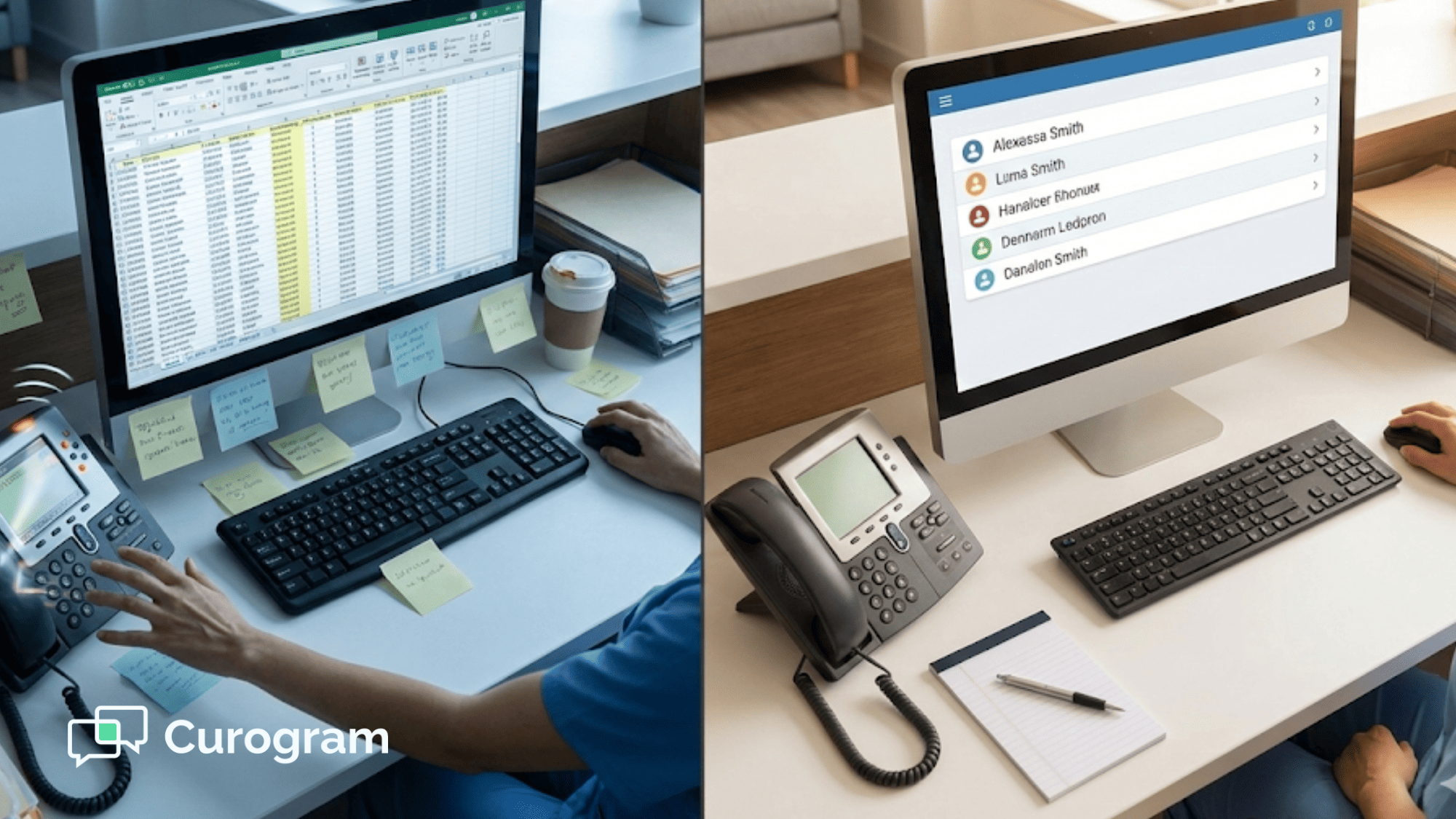
Here is what this looks like in real life. An office manager opens CollaborateMD, exports the full patient list, and loads all 5,000 names into a texting tool. She types a quick message: "It's time for a check-up! Call us to book." She hits send and waits.

Within hours, the front desk is flooded. Some callers want to book. Most are confused. "I was just there on Friday. Why are you texting me?" Others are upset because the message has nothing to do with their care. A patient who sees a specialist for joint pain does not need a text about a general check-up.

The problem is not the tool. The problem is the list. When you send to everyone, you are sending to people who should not get that message. And every wrong text chips away at trust.

The "Unsubscribe" Risk

Here is the part that really stings. When a patient replies "STOP," that opt-out is final. You cannot text them again unless they opt back in. And most never do.

Think about what that means for a practice with 4,000 active patients. If you send one bad blast and just 2% opt out, that is 80 patients gone from your texting list for good.

Do it three times a year and you have lost 240 patients you can no longer reach by text. That is 240 people who will not get your flu shot reminder. They will not see your holiday hours update. You have closed that door yourself.

This is why smart practices focus on ways to reduce opt-out rates. The goal is to protect your texting list the same way you protect your patient base. Every opt-out is a lost channel, and it is almost always caused by sending the wrong message to the wrong person.

The Clinical Disconnect

CollaborateMD holds detailed data on every patient. You have visit dates, diagnosis codes, payer info, and provider notes. Yet most practices ignore all of it when they run recalls. They treat a complex patient with three chronic conditions the same as someone who came in once for a sore throat.

Here is an example:

Say, you have a patient named Maria. She is 62, has Type 2 diabetes, and has not been in for six months. She needs a follow-up. Now look at Jake. He is 28, came in for a sprained ankle three months ago, and is fully healed. If both get a text that says "Come see us," Maria might book. Jake will think it is spam.


The data to tell them apart is already in your system. CollaborateMD has the diagnosis codes, the visit history, and the payer details. You just need to use it.

When you ignore this data, you waste your texting budget. Worse, you annoy patients who have no reason to come in. And you miss the ones who truly need to be seen. Maria might not book because she thinks the message was just another mass text. She does not know it was meant for her.

The answer is not to stop texting. It is to stop texting blindly. The next section shows you exactly how to use your data to build recall lists that make sense.

Filtering for Relevance in CollaborateMD

The power of your recall list lives in how you build it. CollaborateMD gives you tools to slice your patient data in ways that most practices never use. Once you know the right filters, you can create groups that are small, focused, and worth texting.

The "Golden Criteria"

There are three filters that drive the most results. These are the ones to start with if you have never built a segmented list before:

  • Recency - This means filtering by last visit date. For example, you can pull every patient who has not been seen in 12 to 18 months. These are people who are due for an annual physical. They are likely to book because they know they are overdue. A list of 200 patients who have not been seen in a year is worth far more than a list of 5,000 random names.

  • Diagnosis -  Use ICD-10 codes to find patients with ongoing conditions like diabetes or high blood pressure. These patients need routine follow-ups. A text that says "You are due for your diabetes check" makes sense to them. It does not feel like spam. It feels like care.

  • Payer Type - This is especially useful near the end of the year. You can filter for patients on Medicare Advantage plans who still have open care gaps. These patients have visits covered at no extra cost. A reminder to use those benefits before they reset is a strong reason to book.

These three filters alone can fill your schedule for weeks. And you are using data that is already sitting in your reports.

The Export-Import Sync

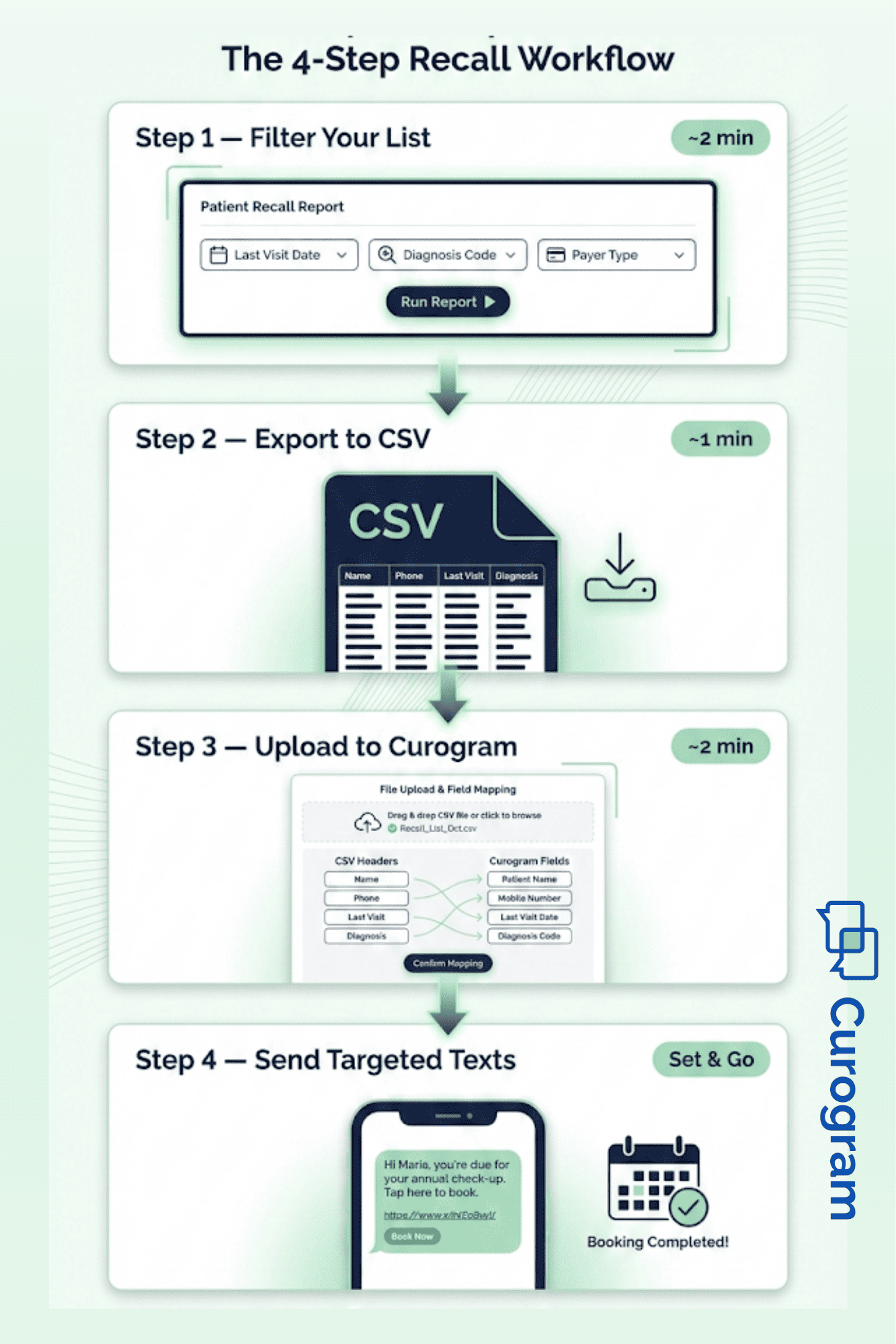
Once you build your list, the next step is getting it into Curogram. Here is the workflow:

  1. Run your report in CollaborateMD using the filters above.

  2. Export the results as a CSV file. This gives you a clean spreadsheet with patient names, phone numbers, and the data points you filtered on.

  3. Log into Curogram and go to the broadcast tool. Upload your CSV file. Curogram will ask you to map the columns. Match the name field to the name column. Match the mobile number field to the phone column. This takes about two minutes.

Now, your filtered list is inside Curogram and ready to text. You have moved from raw data to an active campaign without any manual data entry. This is how a clean clinical recall workflow should look: filter, export, upload, send.

If your practice has set up the API sync between CollaborateMD and Curogram, you can skip the CSV step. The systems talk to each other directly. But even without the API, the manual export is quick and simple.

Smart Tags

Here is where things get even more useful: When you upload a list to Curogram, you can tag every patient in that group. For example, you might tag them as "Overdue_Physical" or "Diabetes_Followup."

These tags stick with the patient record. So after you send your texts, you can go back and see exactly who booked from this specific campaign. Did 30 out of 200 overdue patients schedule a visit? That is a 15% booking rate. Now you know this filter works.

Tags also help with HIPAA compliant patient grouping. You are not sharing diagnosis info in the text itself. You are only using the tag on the back end to track and manage your outreach. The patient just sees a friendly, relevant message.

Over time, these tags build a full picture of which campaigns drive the best results. You can compare "Overdue_Physical" against "Medicare_Year_End" and see which one fills more slots. That is the kind of insight that turns a recall program into a growth engine.

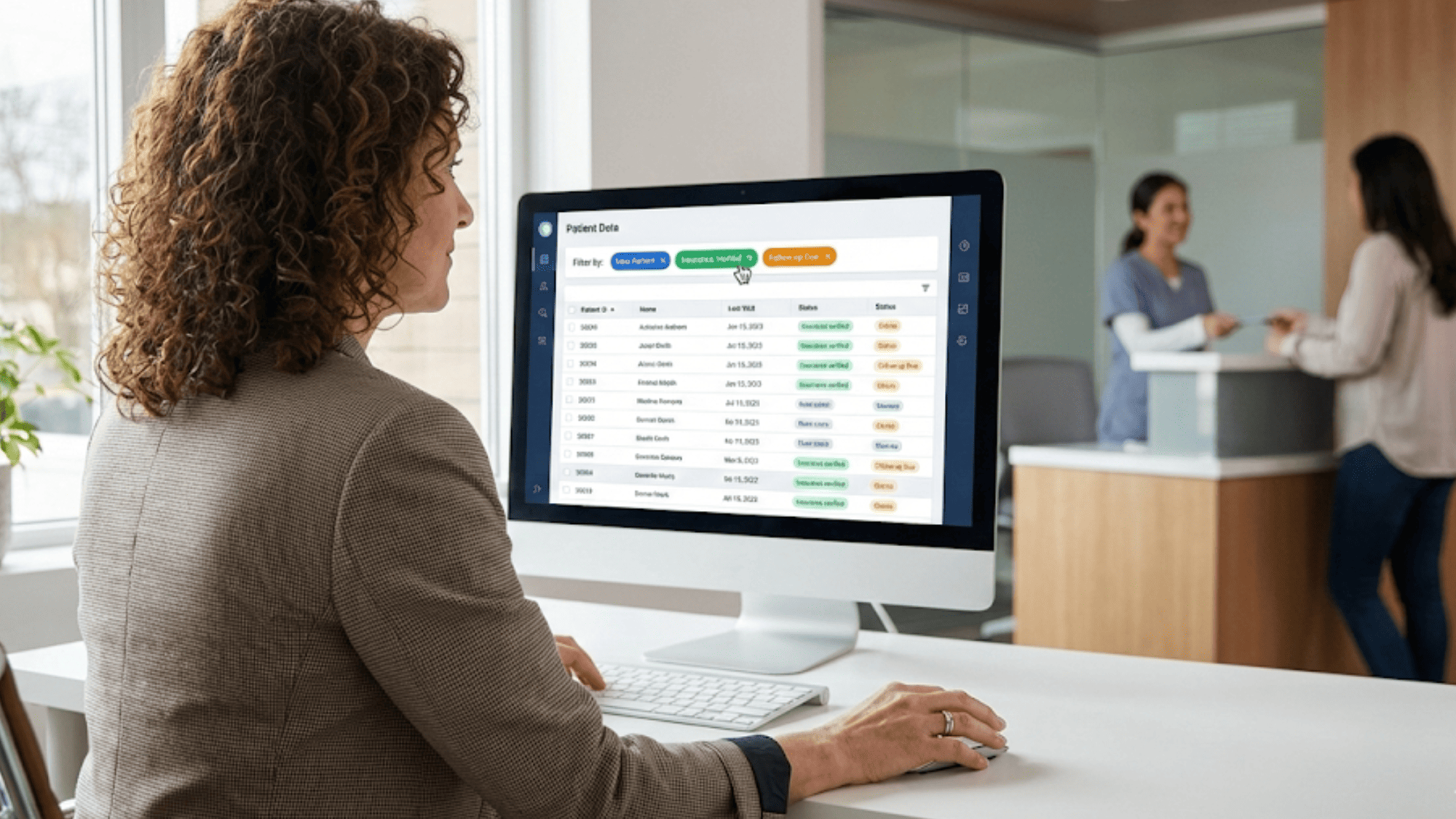
Office manager using CollaborateMD reporting filters to build a segmented patient recall list

The Workflow: Writing the Perfect Clinical Hook

You have built a clean, filtered list. You have uploaded it to Curogram. Now comes the part that makes or breaks your campaign: the message itself. A great list with a bad text still fails. The words matter just as much as the data behind them.

The "WIIFM" (What's In It For Me)

Every patient who reads your text is asking one thing: "Why should I care?" If your message does not answer that question in the first few words, they will swipe it away.

Here is a bad example: "Book an appointment today." That is it. No context. No reason. No name. It could be from a dentist, a mechanic, or a spam bot. There is nothing in it for the patient. It reads like a to-do item for someone else.

Now, look at a good example. "Hi Maria, Dr. Smith noticed you are overdue for your annual check-up. We have openings this week. Click here to secure your time." This message does four things right. It uses the patient's name. It names the doctor. It tells her why she should come in. And it makes it easy to act.

Let's break this down even further. The best clinical hooks follow a simple formula:

  1. Greet the patient by name.

  2. State the reason for the text in one clear line.

  3. Give them a way to act right now.

Here is another example for a chronic care patient:

"Hi James, it has been 6 months since your last blood pressure check. Dr. Patel would like to see you this month. Tap here to pick a time." James knows this is about him. He knows which doctor. He knows what it is for. There is zero confusion.

Contrast that with:

"Dear patient, please schedule your follow-up at your earliest convenience." This message is vague, cold, and gives no reason to act today. There is no hook. There is no urgency.


The key is to make each text feel like it was written just for that person. You can do this at scale because your list is already filtered. Everyone on the "Diabetes_Followup" list has the same reason to come in. So one strong template works for the entire group.

The Call-to-Action

Every message needs a clear next step. The best next step is a link to self-schedule. When you include a Curogram scheduling link, the patient can book in under 30 seconds from their phone.

This matters more than you might think. If your text says "Call us to book," you are sending traffic to your front desk. On a busy Monday, that means hold times, missed calls, and lost bookings. Many patients will not call. They meant to, but life got in the way.

A self-scheduling link removes that barrier. The patient taps, picks a time, and gets a confirmation. Done. Your front desk never had to pick up the phone.

Here is what this looks like in practice:

Say, you send 200 texts to your overdue physical list. With a "call us" message, maybe 20 will call. Of those 20, your desk might book 15 because the other 5 could not get through. That is a 7.5% booking rate.

Now, add a self-scheduling link. Of those 200 texts, 30 might tap the link. Of those, 25 complete the booking on their own. That is a 12.5% booking rate with less work for your staff.


The self-scheduling link is the "magic link" that closes the gap between interest and action. Without it, you leave revenue on the table.

Drip-Rate Control

There is one more piece to get right: how fast you send. If you blast 1,000 texts at once, two things happen:

  1. Your phone lines light up. Patients who prefer to call instead of click will all call at the same time. Your front desk gets slammed.

  2. Carriers may flag your number. When a single phone number sends a huge batch of texts in a short window, it can look like spam to mobile carriers. This can slow down your delivery or even block your messages.

The fix is simple. Use Curogram's drip-rate feature. Set your send speed to 50 texts per hour. For a list of 500 patients, that means your campaign rolls out over 10 hours instead of 10 minutes. The calls trickle in at a rate your desk can handle.

Here is a real-world example:

A family practice sends 400 texts for their annual flu shot campaign. If they send all 400 at 9 AM, they might get 60 calls between 9:15 and 10:00. That is one call per minute on top of regular patient calls. The desk cannot keep up.

With drip sending at 50 per hour, those calls spread out across the day. Instead of 60 calls in 45 minutes, they get 6 to 8 calls per hour. The desk handles each one with ease.


Drip-rate control also helps you track results in real time. As the texts go out in small batches, you can watch the bookings come in. If the first 100 texts get a strong response, you know the message works. If not, you can pause, tweak the text, and keep going.

Step-by-step clinical recall workflow from CollaborateMD report filters to targeted SMS campaigns

Putting It All Together

Here is the full sequence for a single recall campaign. Start by using CollaborateMD reporting filters to build your list. Export the CSV. Upload it to Curogram and tag the group.

Write a message that names the patient, states the reason, and includes a scheduling link. Set the drip rate to 50 per hour. Hit send.

From there, watch the bookings roll in. Use your tags to track how many patients from this specific list scheduled a visit. Note the booking rate. Save the message template that worked. Next time, you will move even faster.

This is what targeted SMS campaigns look like when done right. Every text is earned. Every patient has a reason to open it. And your practice grows one smart message at a time.

The Success: Higher Yield, Lower Noise

When you segment patient recall lists in CollaborateMD and send through Curogram, the results speak for themselves. The numbers get better. The complaints go away. And your staff spends time on work that matters.

Conversion Metrics

Targeted campaigns often convert at 10% to 15%. That means for every 200 texts you send, 20 to 30 patients book a visit. Compare that to a mass blast, which may get less than 1% response. On a list of 200, that is one or two bookings at best.

The gap comes down to one thing: relevance. When the message matches the patient's actual care needs, they act. When it does not, they ignore it or opt out.

Patient Gratitude

Something shifts when your texts are helpful. Patients stop seeing them as noise. A message that says "You are due for your refill" feels like a favor, not a sales pitch. Patients reply "thank you" instead of "stop."

This matters for your brand. Every text is a touchpoint. If that touchpoint is useful, it builds trust. If it is random, it erodes trust. Over months, the practices that send relevant texts build stronger patient loyalty than those that blast and hope.

Staff Efficiency

A filtered list also means fewer wasted calls. Every phone call that comes in from a targeted campaign is a real booking lead. Your front desk is not fielding questions like "Why did you text me?" or "I was just there last week."

Think about the time saved. If a mass blast sends 500 texts and 40 people call confused, that is 40 calls that produce nothing. At three minutes each, that is two hours of wasted staff time. A targeted list cuts those junk calls to near zero. Every ring is a patient ready to book.


How Curogram Powers Your Segmented Recall Campaigns


Curogram was built for exactly this kind of work. It connects to CollaborateMD and turns your raw patient data into real results. Here is what it brings to your recall program.

The broadcast tool lets you upload any filtered CSV list and send texts to the whole group at once. You do not have to text patients one by one. Map your columns, write your message, set the drip rate, and go. The whole setup takes less than five minutes.

Smart tags let you label each patient group. Tag a list as "Overdue_Physical" or "Diabetes_Q4" and track exactly who books from that campaign. This turns your texting from a guess into a measured strategy. You know which filters and which messages work best.

The self-scheduling link removes the biggest barrier to booking. Patients tap the link in their text and pick a time on their own. No phone call. No hold time. No back and forth. Your front desk stays free for walk-ins and other tasks.

Curogram is built for HIPAA compliant patient grouping. All data stays protected. Patient health details never appear in the text itself. You use the clinical data on the back end to build lists, while the messages patients see are simple and safe.

The platform supports two-way texting. If a patient replies with a question, your staff can respond right from the Curogram dashboard. This keeps the conversation going and helps close the booking.

Curogram works as a seamless add-on to CollaborateMD. There is no need to replace your EMR or learn a whole new system. Staff can be trained in under 10 minutes. The platform is designed for busy front desks that need results without added complexity.

Conclusion: Data Driven Patient Care

Your CollaborateMD reports are more than billing records. They are a roadmap for filling your schedule with the right patients. Every filter, every export, and every tagged list brings you one step closer to smarter outreach.

The old way was to send one text to everyone and hope for the best. That approach burns your list, annoys patients, and wastes staff time. The better way is to segment patient recall lists in CollaborateMD, export focused groups, and send messages through Curogram that feel personal and relevant.

When you move from mass blasts to targeted SMS campaigns, two things happen. First, more patients book. Second, fewer patients opt out. You protect your texting channel and grow your revenue at the same time.

This is not a complex process. You do not need a marketing degree or a data team. You just need the reports you already run, a clear filter, and a tool that lets you act on the results. Curogram handles the rest, from the upload to the send to the tracking.

The practices that win with patient recalls are not the loudest. They are the most precise. They know which patients to reach, when to reach them, and what to say. And they measure everything so the next campaign is even better.

Your data is sitting in CollaborateMD right now. Your patients are waiting to hear from you. The only question is whether your next text will feel like spam or like care.

Make it count. [Book a Demo] to see how Curogram's tools turn your patient data into booked visits.

Send the right message to the right patient. Book a quick demo now to see how Curogram's tools turn your patient data into booked visits.


Frequently Asked Questions

How do I filter patients by diagnosis code in CollaborateMD for a recall campaign?
Go to the reporting module, select the patient report, and apply the ICD-10 code filter for the condition you want to target. Export the results as a CSV and upload them to Curogram for outreach.
Why does sending the same text to every patient increase opt-out rates?
Patients who recently visited or have no reason to come in see the message as irrelevant. Irrelevant texts feel like spam, and patients reply "STOP," which removes them from your texting list for good.
How does tagging patient groups in Curogram help track campaign results?

Tags like "Overdue_Physical" attach to each patient in a batch. After the campaign, you can filter by tag to see exactly how many from that group booked, giving you a clear booking rate for each list.

Why should I use a self-scheduling link instead of asking patients to call?

A scheduling link lets patients book in under 30 seconds from their phone. Asking them to call creates hold times and missed connections, which lowers your booking rate and adds work for your front desk.

How does drip-rate sending prevent my phone lines from getting overwhelmed?

Drip sending spaces your texts over hours instead of minutes. At 50 texts per hour, incoming calls trickle in at a pace your staff can handle without missing regular patient calls or walk-ins.


Veradigm Mass Texting Workflows for Imaging Centers

Veradigm Mass Texting Workflows for Imaging Centers

💡 Mass texting solves the issues imaging centers face daily. It helps teams automate patient notifications that Veradigm users rely on for smooth...

Read More
How Medstreaming Centers Improve Workflows With HIPAA Texting

How Medstreaming Centers Improve Workflows With HIPAA Texting

💡 Imaging centers using Medstreaming face growing communication demands as patient volume increases. Prep requirements vary by modality, schedules...

Read More
GE Centricity Clinics Improve Workflows with Mass Texting

GE Centricity Clinics Improve Workflows with Mass Texting

💡 Multi-location GE Centricity clinics use HIPAA-compliant mass texting to solve common workflow problems across specialty departments. Secure...

Read More