
 Aubreigh Lee Daculug

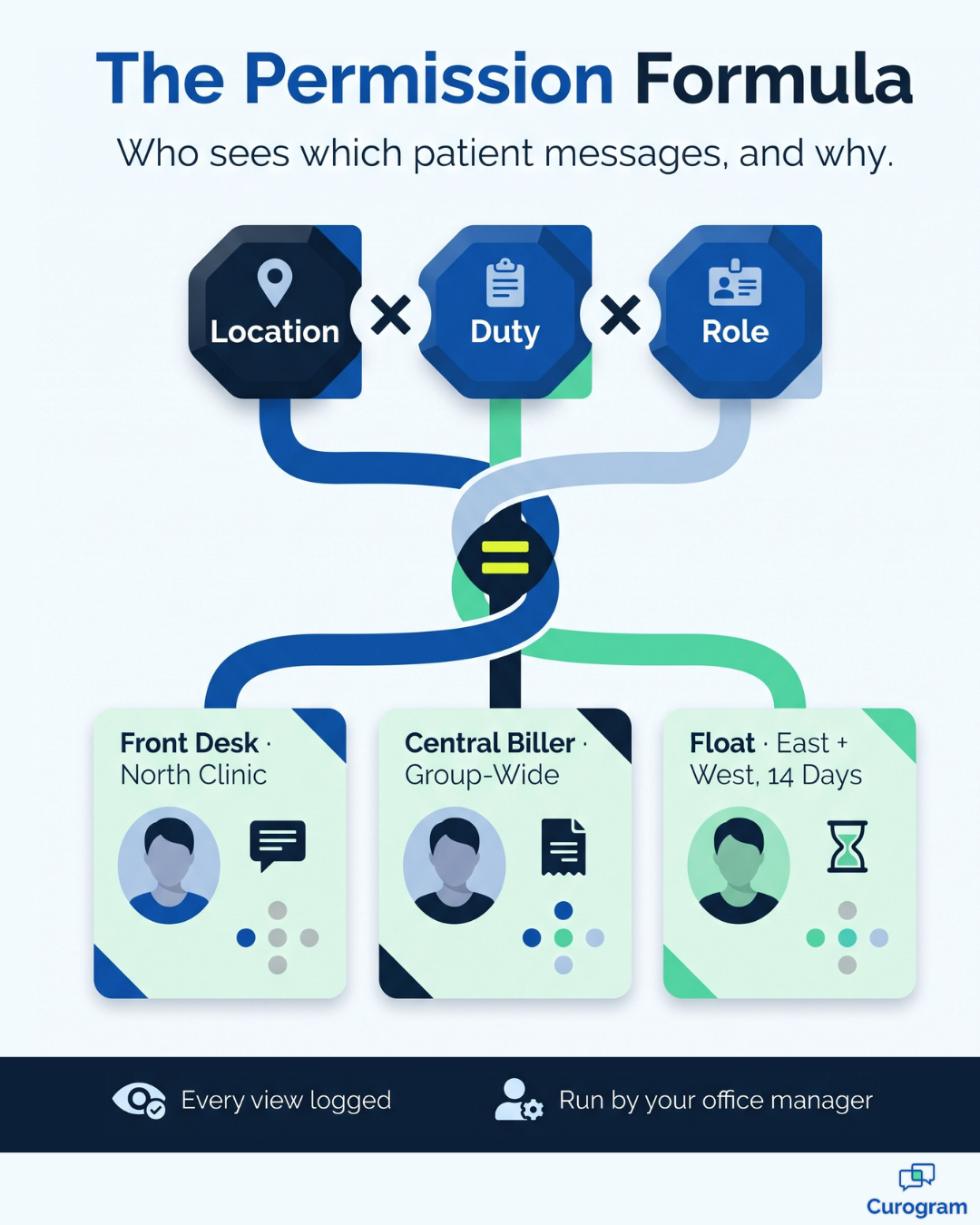
Curogram runs this from one simple console. A float covering two locations gets both for two weeks. A central biller sees billing threads group-wide. A departing employee loses everything in one click.
This replaces "The All-or-Nothing Login." In that model, every user reads every thread at every location, or the tool locks down so hard that staff work around it. Least-privilege access is what makes a shared platform safe for a group that shares staff.
Sooner or later, an auditor asks a multi-location group one quiet question. Who decided this person could read that conversation?
Most groups don't have a good answer. That's not because someone made a bad decision. It's because nobody made a decision at all, since the texting platform arrived with one default setting: everyone sees everything.
That's the trap for lean groups. You moved patient messaging onto one platform so your locations could share staff, share coverage, and stop juggling separate inboxes. It worked well.
But now the new hire at your chiropractic office can scroll through threads from your behavioral health location. Your float from last spring still has an active login. And your biller can see clinical messages she never needed.
Basic tools give you two options. You can open everything to everyone, or you can lock it down so tightly that staff abandon it and invent workarounds. Neither approach holds up when someone starts asking questions.
There's a better model, and it doesn't require an IT department. Role-based access controls for Office Ally patient messaging let you match each login to a real job. You can scope staff access by location, by duty, and by role. Your office manager sets it up, and changes are logged.
HIPAA already points this way. Its minimum necessary standard asks practices to limit access to patient information to what each person needs for their work. Large health systems handle this with dedicated security teams, but a group with three locations and twenty employees needs something simpler.
This guide covers why the all-or-nothing login fails, how Curogram scopes access across a shared platform, and what changes when every user sees only their job. If you manage a multi-location group on Office Ally, it's a short read that could save you a long audit.
Why the All-or-Nothing Login Fails Growing Groups
Sharing Is the Point, and Also the Risk
Sharing is the whole reason you put every location on one platform. A single system means the front desk at one location can handle phone coverage for another. A biller can answer payment questions for every site. Patients receive faster responses.
But sharing only works when access matches how your group is built. If the tool can't tell one location from another, sharing turns into exposure. Every user gets a key to every room.
Nobody Decided This
Here's a scenario many groups will recognize.
A new front-desk hire starts at your chiropractic location on Monday. By Tuesday, she can open session threads from your behavioral health location across town.
She didn't ask for that. Her manager didn't approve it. The tool just works that way.
That's the danger of default settings. When an auditor asks who approved that access, "the software did" is not an answer. Behavioral health thread access should be a clear choice, made by someone who is accountable for it.
Every Account Becomes a Breach Risk
Broad access makes every individual account more dangerous. If one password gets phished, the attacker doesn't get one location's messages. They get all of them.
Employee departures add another complication. When staff share logins, or a tool can't shut off one user cleanly, someone has to change passwords across several systems. Miss one, and a former employee keeps a door open. Offboarding access revocation shouldn't depend on someone remembering every tool.
The Silo Comes Back
Faced with that exposure, many practice owners retreat. They split messaging into a separate tool for each location. Access feels safer again.
But now the group has rebuilt the very silos it paid to remove. Coverage becomes more difficult, and patients wait longer for answers. Leadership also loses the single view that made one shared platform worth it.
How Curogram Serves as Your Compliance Backbone
Curogram was built for a different kind of sharing. Think of it as "The Compliance Backbone." The whole group works on one platform, but visibility is set role by role.
The goal is least privilege: patient messages reach only the people who need them. Federal guidance treats this as a core control. NIST lists least privilege as its own security control, AC-6. Curogram puts that idea in the hands of the people who actually run your offices.
Here's how the pieces fit together:
- Permissions that stack. Access combines location, duty, and role. A nurse at your north clinic sees her clinic's threads. A central biller sees billing threads across every site.
- Coverage with an end date. A float covering two locations can get access to both for two weeks. Coverage is granted for a set time instead of forever.
- One console for everything. Your office manager handles access from one screen. This is permission management without IT.
- Sensitive threads stay contained. Higher-sensitivity conversations, like behavioral health, stay with the team that serves those patients.
- Full logs and clean exits. Message access is logged, and one deactivation removes a user from every location.
This setup maps onto how your group already works. You don't redraw your org chart to fit the software. Your locations, duties, and specialties become the permission model.
It also fits alongside your Office Ally setup. Curogram connects to Office Ally through an integration engine. Setup requires an Office Ally user ID and password, not access to your server, and the documented timeline is one day.
Once connected, appointments flow from Office Ally into Curogram. Confirmed, canceled, no-show, and reschedule-request statuses write back to Office Ally. Access controls then decide which staff can see the patient conversations those workflows create.
For the bigger picture on governing a shared texting platform, see our guide to HIPAA-compliant texting governance for Office Ally group practices.
What Right-Sized Access Looks Like Day to Day
Once access is scoped, the change shows up in small, everyday moments. Message access is scoped and logged. Your audit posture goes from hard to defend to easy to show, all in one move.
Here's how common situations compare:
| Situation | All-or-nothing login | Scoped access with Curogram |
|---|---|---|
| New hire starts | Sees every location's threads on day one | Sees only her location and duties |
| Float covers another site | Gets full access with no end date, or none at all | Gets both locations for the coverage window |
| Biller answers payment questions | Can also read clinical conversations | Sees billing threads group-wide |
| Behavioral health patient texts in | Thread is visible to all staff | Visible only to that patient's care team |
| Employee leaves | Password changes across several tools | One deactivation, with history kept |
| Auditor asks who opened a thread | No clear record | A logged answer, ready to share |
The biggest shift is cultural. Your group moves from "everyone sees everything" to "everyone sees their job." Sharing and safety stop being a trade-off.
Coverage gets easier, too. When a location is short-staffed, you can grant extra access for a set window. You don't create permanent permission sprawl just to get through a busy week.
Audits also feel different. When someone asks who opened a thread, you pull the answer from an audit log patient texting teams can hand over without a scramble. That's the kind of record an access review wants to see.

And offboarding stops being a fire drill. Instead of changing shared passwords across tools, your office manager deactivates one account. Access ends at every location, and the person's past activity stays on record.
For groups that share a central inbox, this is what makes it workable. Scoped access is the layer that lets a multi-location command center stay shared without becoming exposed.
Rolling Out Scoped Access Without Disrupting Your Team
Knowing you need tighter access is the easy part. The harder part is making the transition without disrupting daily operations at the front desk. A simple, staged rollout keeps patient conversations moving while permissions get cleaned up.
Here's a practical sequence most lean groups can follow:
- Map your locations and duties. List every site, then list the jobs at each one, such as front desk, nursing, billing, and management. This becomes the foundation of your permission model.
- Match each person to a role. Assign staff based on what they actually do today, not what their current login allows. Pay special attention to anyone who works across more than one site.
- Protect sensitive teams first. Identify the locations or specialties, like behavioral health, that need the tightest limits. Establish those boundaries before configuring anything else.
- Plan for floats and coverage. Decide ahead of time how temporary access gets approved and how long it should last. That way, coverage requests don't turn into permanent exceptions.
- Review activity after 30 days. Check who opened which threads and whether anyone was blocked from something they needed. Then refine individual roles based on what the activity reveals.
A few consistent habits keep the permission model reliable over time. Revisit roles whenever someone changes jobs, not just when they leave. Fold access checks into your existing HIPAA review schedule so they don't become a separate project.
It also helps to explain the change to employees in practical terms. Most employees welcome a cleaner inbox once they understand the reason behind it. Seeing only the conversations tied to their job means less noise and fewer chances to open the wrong thread by mistake.
The result is a permission model that accurately reflects how your organization operates. It's built once, adjusted as you grow, and run by the people who already know your team best.
Centralize With Confidence, Not Exposure
A shared platform is only safe when access is scoped. And scoped access is exactly what lets a group centralize communication with confidence.
That's the real lesson behind the all-or-nothing login. The problem was never sharing itself. It was sharing without limits, controlled by a tool that offered only two choices.
It helps to think of your systems as two separate layers. Office Ally is where you manage who can touch charts and claims. Curogram is where you manage who can see patient conversations, and both deserve the same discipline.
Most groups already hold their EHR to a high standard. They know who can edit a chart and who can submit a claim. Patient texting usually receives far less attention, even though those threads can contain equally sensitive information.
So here's a practical exercise for this week. List everyone who can currently read patient messages at a location where they've never worked. Include floats who moved on, billers with clinical visibility, and new hires with group-wide logins.
Then set a clear goal to shrink that list all the way to zero.
If the list is long, you're certainly not alone. Most lean groups never had a tool that made anything better possible. Fixing it doesn't require a security team, just a platform designed for scoped sharing and an office manager who knows your people.
That's where Curogram comes in. You keep the benefits of one shared platform, with each user limited to their own locations and responsibilities. Your office manager administers it, and access is logged along the way.
Ready to see how it would work for your group? Schedule a Demo with Curogram. We'll review your locations and duties and show you how they translate into a clear permission model, so every employee gets exactly the access they need.