
 Mira Gwehn Revilla

- A 45-minute kickoff call, where you sign the BAA and name who owns patient replies
- Our integration team connects to Azalea Health over days 1 to 5, with no work or downtime on your side
- About 2 hours with us to choose your sending number, reminder wording, and quiet hours
- A 1-hour walkthrough for each front desk staff member in week 2
- Go live in week 2 or 3, with daily check-ins through the first week
Your share of the work to set up Curogram is about four hours. The calendar, from kickoff call to a settled first week live, runs two to three weeks. Plan around both numbers, because they measure different things.
At a rural clinic on Azalea Health, the rollout usually lands on one person. She’s the practice administrator who also fields payroll questions, chases the copier repair, and grabs the phone when the front desk is short.
There’s no IT department to hand this to. What she needs is a clear list of the days she’s on the hook and the days she’s only waiting.
Waiting is where most go-live dates slip. A carrier has to approve the texting number. A physician has to sign off on reminder wording. Training has to fit around a clinic that doesn’t close at lunch.
So we lead with timing when we explain how to set up Curogram with Azalea Health. Every step below shows who does the work, how long your part takes, and where the calendar stretches. We think a vendor owes you the waiting time up front, since that’s the number that decides your go-live date.
Curogram is a HIPAA-compliant texting platform that connects with your Azalea Health schedule. Once it’s live, reminders, confirmations, and two-way texts go out from your appointment book without anyone copying phone numbers by hand.
The Setup, in Five Steps
Each step waits on the one before it. No patient data moves until the BAA is signed. Staff can’t practice on templates that haven’t been approved, and reminders stay off until your front desk has finished its walkthrough. That order is fixed, so an early delay pushes every later date back.
The Short Version
Curogram setup on Azalea Health follows five steps, and our Guided Onboarding team runs each one with you. You join a 45-minute kickoff call.
Our integration team then connects to your Azalea Health system while you keep seeing patients. You spend about two hours with us choosing your sending number, reminder wording, and send windows.
Each front desk staff member then takes a one-hour walkthrough. After that, you go live, and we check in daily through the first week.
Your working time totals a few hours. Elapsed time runs two to three weeks. The Azalea integration setup steps happen in the same order at every facility, which is why we can put real numbers on each one.
|
Step |
Who does it |
Your working time |
Elapsed |
|
1. Kickoff and access |
You and our onboarding team |
45 minutes |
Day 1 |
|
2. Connecting to Azalea Health |
Our integration team |
Nothing on your side |
Days 1 to 5 |
|
3. Number, templates, send windows |
You, with our team |
About 2 hours |
Days 3 to 7 |
|
4. Staff walkthrough |
Your front desk |
1 hour per person |
Week 2 |
|
5. Go live and the first week |
Everyone |
Daily check-ins |
Week 2 to 3 |
Why Elapsed Time is Longer Than Working Time
Three things stretch the calendar. None of them takes much of your time, but each one runs on someone else’s clock.
Number Provisioning
US carriers want business texting numbers registered before they’ll carry patient messages at volume. If you keep your current office number, the carrier also has to confirm your clinic owns it. That review usually fits inside days 3 to 7, and we can’t speed it up from our side.
Carriers filter or block business texts from numbers that skip this step, so it can’t be left out. A new local number drops the ownership check, but registration still applies. Your part is a signature and the account details from your phone bill. Bring a recent bill to kickoff and the paperwork goes out the same day.
Template Review
Reminder wording needs a yes from whoever answers for patient-facing text. At many small facilities, that’s the medical director or the owner physician. A two-minute read can sit in their inbox for a week between clinic days and call shifts.
We send drafts by day 3 for that reason. Book 10 minutes on the reviewer’s calendar at kickoff, and the draft has somewhere to land.
Scheduling the Staff Session
Your front desk can’t all leave the desk at once. Take a clinic open 8 to 5 with four people at the front (an illustrative example). They usually train in pairs across two days so the phones stay covered.
That spreads four staff hours of training across most of week 2. A clinic with one person at the front has it easier, since a single slow afternoon covers it. Pick the slots during kickoff, before the schedule fills.
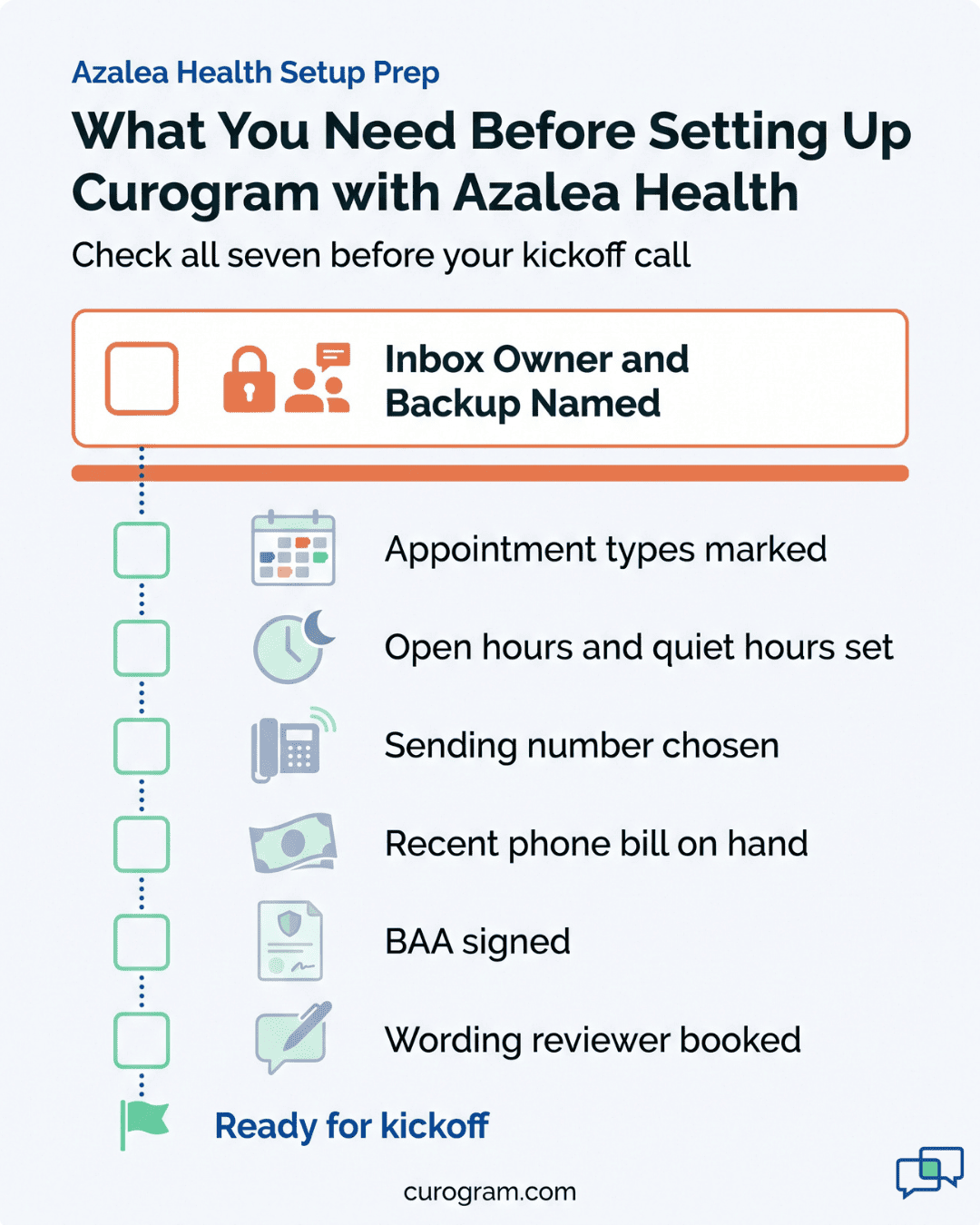
What to Have Ready Before Kickoff
Most of this prep is a matter of asking around the building. The appointment list lives in Azalea Health, the phone bill sits with whoever pays the bills, and the contract signer may work off-site. Start gathering it the week before kickoff, so the 45-minute call goes to decisions.
Before any patient data moves, Curogram signs a business associate agreement (BAA) with your facility. HIPAA requires one with any vendor that handles protected health information on your behalf. HHS lays out the BAA requirement for patient messaging and the rest of the HIPAA rules for providers.
Have whoever signs contracts on the kickoff call, or send the BAA ahead so it’s done before day 1. A BAA waiting on a signature holds up step 2.
The Four Things We Will Ask For
Bring these four answers to the kickoff call. Each one saves a follow-up email, and a missing one is the usual reason step 3 runs long.
Who Owns the Inbox
Patient replies land in a shared inbox. Someone has to watch it during clinic hours, answer what they can, and pass the rest along. “The front desk” isn’t an answer. We need a name and a backup.
Think about the replies you’ll actually get. “Can I come at 2 instead?” goes to scheduling, and “Why is my bill $140?” goes to billing.
If those are different people, tell us at kickoff and we’ll set up the handoff. With two locations, decide whether one person covers both or each site watches its own replies.
Your Appointment Types
Pull the list of appointment types you use in Azalea Health. Mark which ones should get reminders and which shouldn’t. Include types only one provider uses, like a monthly podiatry clinic day. Provider admin blocks, staff meetings, and same-day sick visits are common exclusions.
Add a short note to the ones that need special handling. For example: “New patient: remind 3 days out and again the day before. Arrive 15 minutes early.” Those notes become your first template drafts, so you edit instead of starting from a blank page.
Clinic Hours and Quiet Hours
We need your open hours for each location, plus any lunch closure. Then pick your quiet hours, the window when no texts go out. One example is nothing before 8 a.m. or after 7 p.m., and nothing on Sunday.
If one site keeps Saturday hours and another doesn’t, say so. Reminders follow each location’s schedule.
List the days you close, too, like the Friday after Thanksgiving. A reminder for a day you’re dark sends patients to a locked door.
The Sending Number
Patients will see one number on every text. You can text-enable the main office number they already call, or take a new local number.
Your main number is the one patients trust, and their replies come back to a number they recognize. It adds the carrier ownership check, which is a few extra days. A new number moves faster, but patients see a number they’ve never seen before.
We’d keep the main number if your go-live date can absorb the wait. Either way, bring a recent phone bill.
What You Do Not Need
For a clinic with no IT staff, patient engagement setup usually raises one worry: who will install it. Nobody has to. Curogram runs in a web browser, and Azalea Health is cloud-based too, so the link runs between two hosted systems.
What’s off your plate:
- Servers or hardware of any kind
- Software installs on front desk computers
- An IT contact or outside consultant
- Downtime on Azalea Health, since your schedule stays open the whole time
Your front desk needs a current web browser on the computers they already use. Staff keep signing in to Azalea Health the same way they do now, and Curogram gets its own login.
The Steps, in Detail
Steps 2 and 3 overlap. While our integration team builds the Azalea Health connection, you’re already choosing a number and reviewing reminder wording. That overlap is what keeps the whole calendar close to three weeks. If they ran back to back, your go-live date would slip by several days.
Kickoff and Access
Step 1 is a 45-minute video call. Your rollout owner joins, along with whoever signs contracts if that’s a different person. From our side, you’ll meet your onboarding lead and an integration specialist.
We confirm the four items from your prep list, check that the BAA is signed, and set up your admin login. You leave the call with three dates: when template drafts arrive, when walkthroughs happen, and your target go-live day. Your Azalea Health Curogram onboarding plan is written down that day and sent to you, so nobody has to remember it.
Connecting to Your Azalea Health System
Our integration team handles step 2. They set up the link so appointment data from your Azalea Health schedule reaches Curogram. Then they test it with sample bookings before any patient gets a text.
You don’t change settings in the Azalea Health platform. Patients keep checking in as usual. If anything needs a sign-off on your side, we’ll tell you who to email and what to write.
Number, Templates, and Send Windows
Step 3 is the one that needs your judgment. It’s about two hours with our team, often split into two calls. You’ll make four decisions.
- Confirm your sending number and sign the carrier form.
- Set reminder timing, such as a confirm request 2 days out and a short reminder at 8 a.m. on the day.
- Lock in quiet hours for each location.
- Match appointment types to reminder sequences.
That last decision looks like this at a sample family practice:
|
Appointment type |
Reminder sequence |
|
New patient |
3 days out, then the day before |
|
Annual physical |
2 days out, then the morning of |
|
Follow-up |
The day before only |
|
Same-day sick visit |
None, since the patient booked hours ago |
Then you review the wording. A sample reminder for a fictional clinic reads:
“Hi Dana, this is Pine Valley Family Clinic. You’re scheduled Tue 3/10 at 9:40 AM with Dr. Ross. Reply C to confirm or call 555-0142 to reschedule.”
Spell out the clinic name, and leave out the reason for the visit. Your reviewer signs off, and the templates are locked for go-live.
Staff Walkthrough
Step 4 is one hour per person, split by role. Front desk staff spend most of it in the shared inbox and the confirmation view.
By the end of the hour, each person can answer a patient reply, see who confirmed for tomorrow, and send a one-off text to a patient running late. They can also pass a billing question to the right person.
Your rollout owner gets a few extra minutes on editing templates later. Run each session on the computer that person uses at the desk, so the login and browser are set up before day one.
Go Live and the First Week
Step 5 starts when reminders turn on. We check in daily, and the first week almost always turns up three things.
Stale mobile numbers come first. A patient’s home landline sits in the mobile field in Azalea Health, so the text fails. Your team updates the number at check-in.
Next comes an appointment type nobody wanted texted, like a 5-minute injection visit that got a two-step reminder. We switch it off the same day.
Last, one template reads wrong to patients. If three people reply “Who is this?”, the clinic name is probably abbreviated. We change the wording and move on.

What Facilities With No IT Staff Should Expect
The work left on your side looks a lot like the job you already run. You book people’s time, chase a signature, and decide who answers which patient questions. Block two or three short slots on your own calendar in week 1 before anything else fills them.
Who Owns This Internally
Plan on one person, part-time, for about three weeks. At most rural clinics, that’s the practice administrator or office manager. Name a backup too, someone who can join a check-in if you get pulled to the front.
|
Week |
What you do |
Your time |
|
Week 1 |
Kickoff, prep list, template review, carrier form |
About 3 hours |
|
Week 2 |
Book walkthroughs, take your own, final sign-off |
About 1.5 hours |
|
Week 3 |
Go live, daily check-ins, fix week-one items |
Short daily calls |
The Two Things That Most Often Delay a Go-Live
You can spot both of these at kickoff:
Nobody Owns the Inbox
Some kickoffs end with “the front desk will handle replies.” When that happens, go-live waits. We won’t turn reminders on until a named person is watching for answers.
A patient who texts “I need to cancel” and hears nothing has a worse visit than one who never got a text. The fix takes one conversation. Pick a name, pick a backup, and write down their hours.
Template Review Sits With Someone on Leave
Drafts go to the one person who approves patient-facing wording. Then that person is on vacation, out on leave, or covering the ER for a week. Two days of work turns into two weeks of waiting.
Ask at kickoff who signs off and whether they’re around in week 1. If they aren’t, name a stand-in who can approve wording without checking back.
How Guided Onboarding Fits a Facility With No IT Staff
Guided Onboarding is how Curogram gets an Azalea Health facility from signed agreement to a working first week. You get one onboarding lead from kickoff through week three. That person tracks your dates, chases the carrier form, and runs the daily check-ins after go-live.
Our integration team handles the Azalea Health connection and tests it before any patient sees a text. Template drafts arrive already built from your appointment-type notes. Your reviewer edits wording and doesn’t have to write it from scratch.
Staff walkthroughs run by role and fit around your clinic hours. If week one turns up a stale number or a confusing template, your onboarding lead helps fix it that day.
Once reminders are running, the payoff shows up in the schedule:
|
Result |
Source |
|
Confirmation rate above 75% |
Platform-wide, based on our internal data |
|
No-shows cut from 14.20% to 4.91% in three months |
Atlas Medical Center |
|
More than 1,100 appointments confirmed each month |
Covina Arthritic Clinic |
Those figures come from clinics across our customer base. Your own numbers depend on your patient mix and how many mobile numbers in Azalea Health are current. Patients who already use your portal can keep it.
Conclusion: Booking the Consultation
Your part of this setup fits into a few afternoons. The three weeks around it belong to carriers, reviewers, and your front desk schedule. Facilities that go live on time settle two things at kickoff: who owns the inbox and who signs off on wording.
A consultation is where you get your own version of the timeline. We’ll look at your Azalea Health locations, your appointment types, and the date you need to be live. Then we’ll tell you honestly whether that date works and what has to happen first.
If your date is tied to something fixed, like a new provider’s first day or the start of flu shot season, say so at the start. That date shapes when kickoff needs to happen.
Bring your go-live date. We will work backwards from it with you. Schedule a demo now.