9 min read

Automate Appointment Confirmations in Oracle Health

Automate Appointment Confirmations in Oracle Health

💡 Oracle Health appointment reminder configuration starts by mapping Cerner appointment types to smart timing rules, then layering on department routing and at-risk patient flagging.       

The goal is simple: send the right reminder at the right time, capture confirmations in real time, and surface no-show risks before they cost you revenue.      


A proper Cerner intelligent reminder setup takes 2–4 weeks for a 40-location system.

Once live, teams typically see 60–70% of at-risk appointments convert to confirmed visits within 30 days.


The five-step process: audit appointment types, define timing rules, configure routing, enable at-risk flagging, and train your staff.


It's 8:42 a.m. The clinic schedule shows 47 appointments. Seven of those patients haven't confirmed. Nobody knows who will actually walk in.

Your front desk is already buried in phone calls. The schedulers are guessing. The providers are about to start a day with hidden gaps.

Sound familiar?

This is the daily reality for most Oracle Health customers running default reminder workflows. A generic SMS goes out 24 hours before every appointment. Patients ignore it. Staff have no visibility into who confirmed and who didn't.

By the time a no-show is obvious, the slot is already wasted.

Here's the cost. The industry average no-show rate sits around 19%. For a clinic running 200 appointments a day, that's 38 missed slots.

At an average reimbursement of $150 per visit, you're looking at $5,700 in lost revenue. Every day.

Multiply that across a multi-location health system. Now you're staring at millions in preventable losses each year.

The fix isn't sending more reminders. Reminder fatigue is already a problem. The fix is sending smarter reminders, then giving your team real-time visibility into who's at risk so they can act before the slot is gone.

This guide walks you through the full configuration, step by step. It's written for IT directors, clinical operations leaders, and system administrators who own the Oracle Health environment and need to get this right the first time.

Total setup time: 2 to 4 weeks for a 40-location system. Visible results: within 30 days.

Let's get into it.

Before You Configure: Planning and Data Mapping

The temptation is to log into the admin portal and start clicking. Resist it. The clinics that get the best results from Oracle Health appointment reminder configuration spend their first week mapping data, not building rules.

This planning phase has three parts, and each one feeds the next.

Auditing Your Cerner Appointment Type Library

Open the AppointmentType codeset in Cerner Millennium. You're looking for every appointment type currently in use across your system. Routine follow-ups. Pre-op consultations. Surgeries. Urgent care visits. Annual physicals.

Each one comes with its own Cerner code, like ATYP-001 for routine or ATYP-002 for pre-op.

Document each appointment type in a spreadsheet, capturing four data points per row:

  • Typical patient urgency (routine vs. urgent)
  • Clinical sensitivity, or how easily it can be rescheduled
  • Pre-visit requirements like labs or insurance verification
  • Historical no-show rate by appointment type

This is where the pattern emerges. High-risk types like surgery, imaging, and urgent care need earlier reminders and tighter follow-up. Low-risk types like routine follow-ups can tolerate longer windows of 48 to 72 hours.

One-size-fits-all reminders are exactly why your current confirmation rates are low.

Mapping Departments to Routing Groups

With your appointment types documented, the next layer is the department map. Every Cerner department needs a Curogram routing group, and every routing group needs a clear owner and a defined response SLA.

A simple example layout looks like this:

Cerner Department Cerner Dept ID Curogram Routing Group Response SLA
Cardiology DEPTCARD CARD-SMS-Group 1 hour
Orthopedic Surgery DEPTORTH ORTHO-SMS-Group 1 hour
Family Medicine DEPTFAM FAM-SMS-Group 24 hours
Behavioral Health DEPTBH BH-SMS-Group 4 hours

The SLA matters. Cardiology can't wait a day for a reschedule request. Routine primary care can. Defining this upfront prevents finger-pointing later, especially when a high-acuity reschedule slips through and nobody's quite sure whose inbox it landed in.

Pay extra attention to high no-show departments. Surgery, urgent care, and behavioral health usually top that list.

Configure those first, learn what works, then roll out across the system.

Identifying Your At-Risk Patient Segments

The last piece of the planning phase is the patient data layer.

Pull a Cerner query of patients with historical no-show rates above 10% and look for patterns. Age 18–25 typically shows up as the highest no-show demographic. Certain zip codes carry higher risk.

Uninsured and underinsured patients miss appointments more often, a pattern consistently highlighted in research on social determinants of health and appointment adherence.

Surgery patients tend to show;

Routine follow-ups tend to skip.

This data does two things. It tells your team where to focus interventions. And when you feed it into Curogram, the platform uses machine learning to refine at-risk predictions over time. Manual seeding accelerates accuracy in the first 60 days.

One important note:

At-risk flagging must stay HIPAA compliant. This data should only be visible to scheduling and clinical staff.

Never expose patient segmentation to non-clinical users.

The Five-Step Cerner Intelligent Reminder Setup in Curogram

With your data mapped, the actual configuration moves quickly. Here's the full sequence, from timing rules to staff rollout.

Step 1: Match Appointment Types to Reminder Timing

Log into the Curogram admin portal. Navigate to Reminder Rules, then By Appointment Type.

For each appointment type in your audit, create a timing rule.

A reasonable starting framework looks like this:

Appointment Type First Reminder Confirmation Deadline
Routine follow-up 48 hours before 24 hours before
Pre-op consultation 24 hours before 2 hours before
Surgery 1 hour before 30 minutes before
Urgent care 2 hours before 1 hour before
Preventive (annual physical) 7 days before 48 hours before

The confirmation deadline is what flips a regular reminder into an intelligent one.

If the patient doesn't confirm by the deadline, Curogram automatically tags the appointment as NOSHOW_RISK and surfaces it for staff intervention.

Setting Escalation Rules

The escalation logic determines what happens after a missed first reminder, and you'll want different rules for different appointment types. A missed surgery confirmation triggers a different response than a missed routine follow-up. Configure these inside the same rule builder, deciding whether the system sends a second SMS, pushes the appointment to a staff dashboard for a phone call, or fires off a backup email. Most teams blend all three depending on appointment risk.

Step 2: Configure Department Routing for SMS Responses

Once timing rules are live, the next step is making sure patient replies reach the right team. Open Routing Groups in the admin panel and build a routing configuration for each department you mapped earlier.

The logic is straightforward. An appointment with a Cerner ServiceCategory of CARD routes responses to the Cardiology SMS group.

A Surgery appointment routes to Surgery. And so on.

Infographic showing 5 signals that flag an at-risk appointment in Oracle Health system

Choosing Response Channels

Curogram supports a few different ways to deliver patient replies, and most clinics use a mix depending on department culture:

  • A shared SMS inbox inside the Curogram admin dashboard
  • A dedicated Slack channel for tech-forward teams
  • An email distribution group for departments that live in their inbox
  • A dedicated SMS short code per department for high-volume specialties

Always run a routing test before going live. Send a test appointment, reply with a test SMS, and verify the response shows up in the right place. It takes ten minutes and saves a lot of cleanup later.

The last piece in this step is automated reply templates.

When a patient replies CONFIRM, you want a friendly thank-you.

When they reply CANCEL, you want a path forward, like asking for a preferred reschedule date or providing a number to call.

Customize templates per department where it makes sense.

Step 3: Turn On Real-Time At-Risk Flagging

With timing and routing in place.

The system can finally do what default Oracle Health reminders can't:

Predict trouble before it happens. Navigate to At-Risk Flagging in the admin panel.

This is where the platform earns its keep, applying evidence-based no-show risk prediction models to identify which appointments are most likely to fall through.

Enable a starting set of rules:

  • Flag any appointment where the patient hasn't confirmed 48 hours before the visit
  • Flag patients with a historical no-show rate above 10%
  • Flag patients in your highest-risk demographic (often 18–25)
  • Flag same-day urgent care appointments scheduled after 2 p.m., since you're unlikely to get a confirmation in time

Once those rules are live, configure the dashboard.

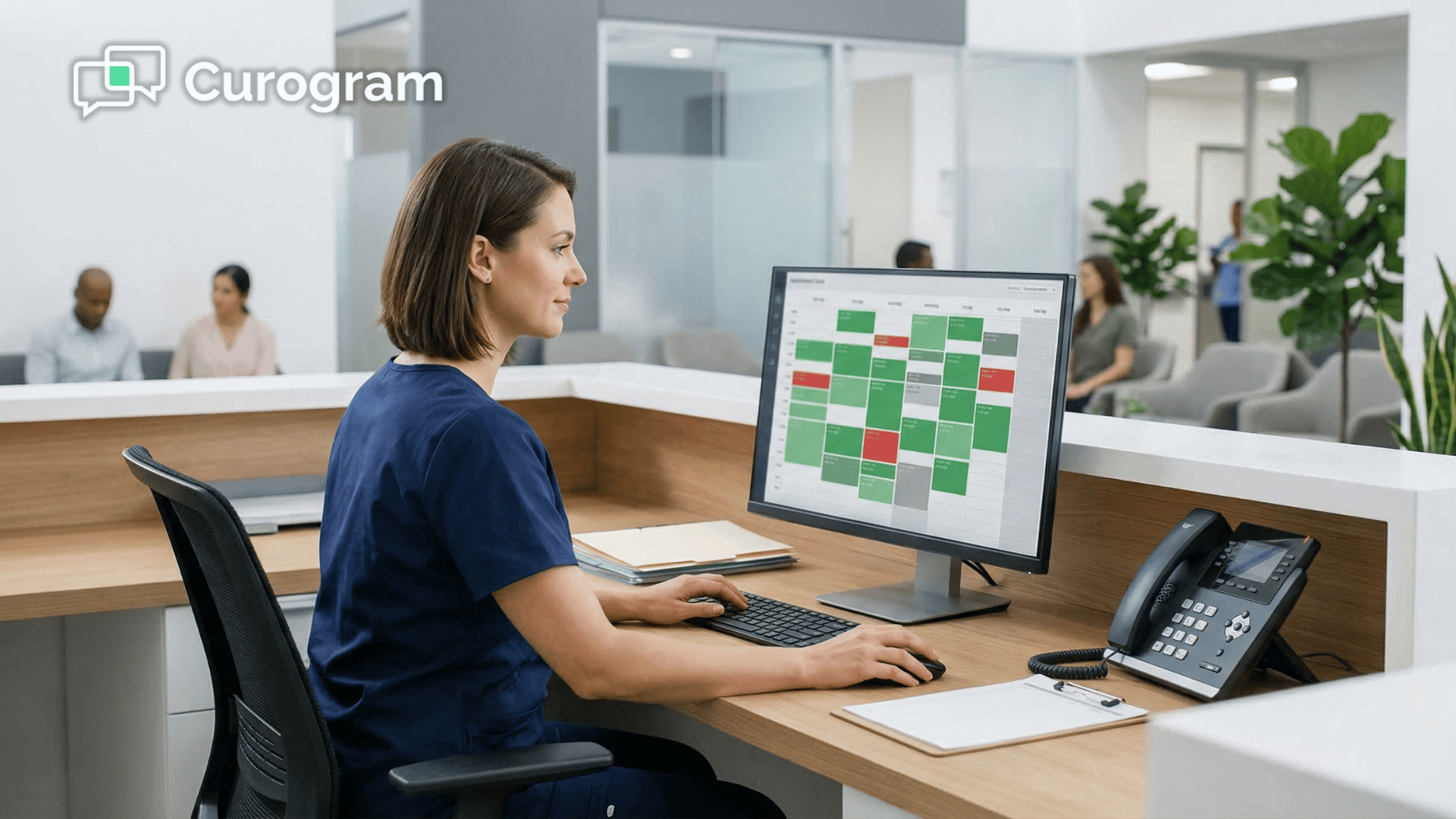
The Curogram at-risk dashboard shows flagged appointments in real time. You can also set up a daily digest email to the Clinical Operations Director listing every at-risk appointment for the next 48 hours.

Pushing At-Risk Status Into Cerner

If you want at-risk status to show inside Cerner itself, set up a FHIR webhook to push the flag into the appointment record as a custom extension.

That's optional, but it's useful for clinics where staff live inside Cerner all day and don't want to bounce between two windows.

Test it before launch. Schedule fake appointments for at-risk profiles and confirm they appear on the dashboard before the deadline. Make sure your team knows what to do when the alerts come in, because a great flagging system means nothing without a clear intervention playbook.

Step 4: Lock In Cerner Status Integration

Flagging is only half the loop. The other half is making sure every patient response actually updates Cerner in real time.

When a patient confirms via SMS, Curogram fires a FHIR PUT request to Cerner that updates the appointment status from SCHEDULED to CONFIRMED.

When they cancel, the status flips to CANCELED.

When they ghost, it becomes NOSHOW_RISK.

Run a full end-to-end test with 10 internal staff appointments. Send the reminders, have testers reply with CONFIRM, CANCEL, and RESCHEDULE, then verify Cerner reflects the change in real time.

Audit Trail and Compliance

Pull the Cerner audit log and confirm each status change is recorded with a timestamp and Curogram as the source.

That audit trail is required for HIPAA Accounting of Disclosures compliance, so don't skip it. If your compliance team ever has to reconstruct who changed what and when, this log is the only thing standing between a clean audit and a long afternoon of explanations.

Step 5: Pilot, Train, and Iterate

The final step is the one most teams underestimate. Pick one or two pilot departments. Cardiology and orthopedic surgery are common starting points because they have measurable no-show costs and engaged scheduling teams.

Run live reminders for two weeks across at least 100 appointments.

Track three things:

Confirmation rate, average response time, and staff satisfaction with the routing flow.

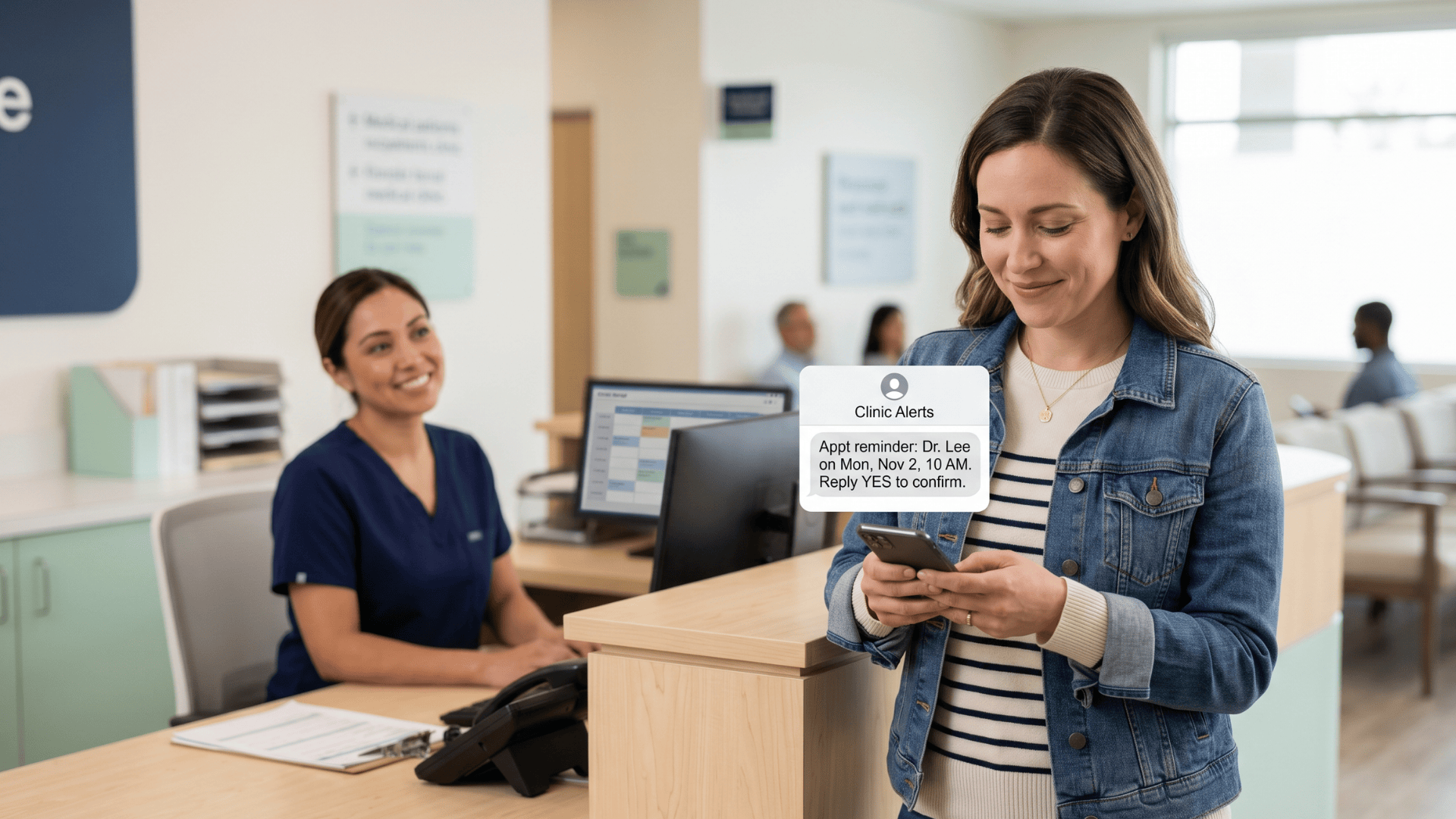
Patient confirming clinic appointment via SMS reminder while staff assists at front desk

Training Staff on the Intervention Workflow

Once the pilot data is in, train the broader team on how to actually work the at-risk dashboard.

Staff need a clear playbook covering a few core actions:

  • Pulling up the at-risk dashboard at the start of each shift
  • Sending a follow-up SMS or making a quick reminder call
  • Logging the outcome (confirmed, canceled, no-show, telehealth swap)
  • Escalating reschedule requests to clinical coordinators when needed

A simple one-page run-of-show guide works better than a slide deck. Print it, pin it at the front desk, and revisit it after the first month.

Then collect feedback.

No-shows cost you money! Reduce missed appointments by up to 75% with Curogram's automated, customizable smart reminders.  

What timing worked best? Are responses landing in the right inboxes? Are at-risk flags actually helping staff prioritize?

Adjust your rules based on real data, not assumptions, before rolling out to the rest of the system.

Putting It All Together: What Results Look Like

Once the configuration is dialed in, the impact compounds quickly. The shift isn't just operational, it's financial, and it shows up in the numbers fast.

The Revenue Math

Consider a 200-appointment-per-day clinic with a baseline 19% no-show rate. That's 38 lost slots a day. With intelligent reminders catching at-risk appointments 24 to 48 hours early and converting 60–70% of them, you're recovering roughly 24 of those 38 slots.

At $150 per visit, that's $3,600 a day, or about $936,000 a year.

Curogram clients see the curve flatten dramatically. Average no-show rates among Curogram users run 53% below industry average.

The average appointment confirmation rate sits above 75%. And because the system is fully automated, your front desk doesn't need to make 100 confirmation calls a day anymore.

What Your Team Actually Feels

Beyond the dollars, your team gets something they've been missing: visibility. Schedulers see the day before it happens.

Clinical operations directors get a daily report of at-risk appointments instead of a daily count of empty rooms. IT stops fielding panicked questions about why patients didn't get reminded.

It sounds simple. It is, once it's configured correctly.

Ready to Stop Losing Slots? Schedule a Demo

You've seen the configuration. You've seen the math. The question now is whether to keep running default Oracle Health reminders that miss 19 out of every 100 appointments, or to switch to a setup that recovers most of them.

Curogram is the most advanced HIPAA-compliant 2-way texting platform built for medical practices. It integrates with Cerner and almost any other EMR, and it's designed to be mastered by your front desk staff in under 10 minutes.

No multi-month onboarding. No bloated training program. Just a smarter reminder workflow that pays for itself fast.

Once it's live, the numbers move quickly. Confirmation rates climb above 75% across most appointment types. No-show rates drop to roughly 53% below the industry average.

Practices typically see a 10–20% revenue lift driven by recovered slots and better scheduling, plus a 50% drop in inbound phone calls that frees the front desk for higher-value work.

For a multi-location health system, the math is hard to ignore.

A single recovered appointment per location per day adds up to seven figures of recovered annual revenue across most regional networks.

The Cerner intelligent reminder setup we walked through in this article is something our implementation team has run dozens of times.

We'll handle the FHIR integration, the routing maps, the at-risk rule design, and staff training. You focus on the patients.

Want to see it work in your environment before you commit? Curogram offers a 30-day free trial so you can validate the impact on real appointments, with real patients, on your actual Cerner instance.

Schedule a demo today and let's map your first cluster of at-risk appointments together. The slots you save next month are the ones currently slipping through your default reminders right now.


Frequently Asked Questions

Can we use different reminder timing for different locations?

Yes. Curogram lets you configure rules at the location level, the department level, or the appointment type level, and you can layer them. So your urgent care at a high no-show location can run 1-hour reminders, while routine follow-ups at a low-risk location run on 48-hour timing. That flexibility is the whole point of intelligent reminders.

What if a department is too busy to respond to SMS confirmations?

Use hybrid routing. Curogram can auto-handle low-priority responses, like routine confirmations, by updating Cerner's appointment status without human review. Higher-priority responses, like urgent cancellations and reschedule requests, still route to staff. This keeps the inbox clean and ensures urgent cases get the attention they need.

How do we handle patients who ignore reminders?

When a patient misses the confirmation deadline, Curogram automatically flags them as NOSHOW_RISK on the dashboard. Staff can then trigger an escalation: a second SMS, a phone call, an email follow-up, or even an offer for a telehealth alternative. Practices that consistently work the at-risk list convert 60–70% of those appointments into confirmed shows.

How long does the full setup take?

Plan for 2 to 4 weeks for a 40-location system. Week one is data audit and mapping. Week two is configuration and testing. Weeks three and four cover pilot rollout and staff training. Most teams see measurable results within 30 days of go-live.

Is the integration HIPAA compliant?

Yes. Curogram is HIPAA compliant, all SMS traffic is encrypted in transit, and every appointment status change is recorded in the Cerner audit log with source attribution. At-risk patient data is gated to scheduling and clinical staff only.