
 Jo Galvez

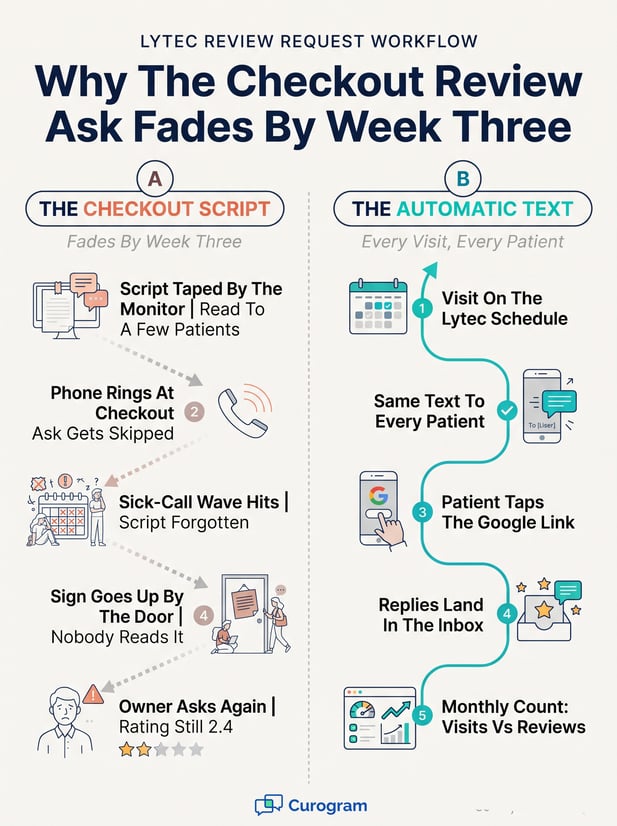
Every patient gets the same text. Replies land in the shared staff inbox, and nobody reads a script at checkout.
Staff usually learn Curogram in about 10 minutes. One multi-location practice earned 1,064 new 5-star reviews in three months, based on Curogram client data from clinical settings.
The usual plan for more Google reviews is a line at checkout. Staff are asked to say it to every patient, and within a few weeks almost nobody does.
Most offices follow the same arc. There's a burst of asks the first Monday, a handful by Friday, and a fading sign by the door at month's end.
The cause is plain. The person asked to deliver the line is also answering the phone. She's scanning an insurance card and booking a follow-up for the patient in front of her.
When three things need doing at once, the review ask is the first one dropped.
We'd take the ask off the front desk entirely. Let each visit on the Lytec schedule trigger a text to every patient, and give staff one job: answer the replies that come back. The request then reaches patients the desk never had time to ask.
There's a compliance reason for this too. Google's policy now names staff review quotas as rating manipulation, so the fix many owners reach for, a daily target, makes things worse. The same policy also names requests for reviews that mention specific staff.
This guide is for the office manager and the front desk lead. We'll walk through why the checkout ask fails and how the automatic version connects with Lytec.
Then we'll lay out the short routine that replaces it, from week-one setup to a monthly count. We'll also cover how to answer a bad review without breaking HIPAA.
Why the Checkout Review Ask Never Sticks
Lytec keeps the schedule, charges, and accounts running. When the owner says the practice needs more Google reviews, the office manager has no Lytec screen to point at.
The Script That Fades by Week Three
- Monday, a checkout line gets printed and taped by the monitor.
- In week one, staff uses it with a few patients a day.
- By week two, a sick-call wave hits and the line gets skipped.
- Week three brings a "Review us on Google" sign by the door instead.
- Three months on, the rating is still 2.4, and the owner is asking again.
Why Staff Skip It
Asking for a review feels like asking for a favor. Staff has to ask at the worst moment, handing back a card while a line forms at the window.
Then comes the follow-up question. The owner asks how the reviews are coming. The office manager has no good answer, because nobody at the desk had a spare minute to ask.
A fairness problem sits underneath. Patients seen on a calm Tuesday morning get asked, while patients seen during the Monday rush don't. So the listing tilts toward whoever came in on quiet days.
Why a Staff Quota Makes It Worse
Some owners respond with a target, like ten asks a day or reviews that mention the front desk by name. Google's contribution policy lists both under rating manipulation.
The policy names "merchants requesting that staff solicit a certain number of reviews" and "merchants requesting that staff solicit reviews that include specific content," including content that identifies a staff member. A quota turns a weak workflow into a policy problem.
The Review Request That Sends Itself After Each Lytec Visit
The most practical medical office review request script alternative is no script at all. Curogram's Lytec integration supplies the schedule, and the request goes out on its own.
How the Trigger Works
Curogram syncs patients and appointments from your Lytec database through an agent your practice approves, using database credentials. After each visit, the patient gets a text from the practice's number with a thank-you and a link to your Google review page.
Every patient gets the same message, so a patient seen by a fill-in provider on Saturday gets the same text as a regular on Tuesday.
That's how you automate patient review requests at the front desk without adding a task to it. Setup usually takes 2 to 5 days, and Lytec adds no integration fee.
Curogram Highlight: Automated Google Review RequestsAutomated Google Review Requests run the ask for you after every visit on the Lytec schedule. Patients tap a link and land on your Google review page, with no app or portal login. Any reply comes back to the shared inbox your staff already use for 2-way HIPAA-compliant texting. Most CGM Lytec office manager tools need someone to run them each day. This one runs off the schedule. Curogram is HIPAA-compliant and SOC 2 Type II certified, and our page on reputation management for Lytec users covers setup and message wording. |
Nothing New at Checkout
Staff usually learn Curogram in about 10 minutes, since the inbox works like the texting app on their phone. Nobody rehearses a line or tracks who got asked. The checkout conversation goes back to copays and follow-up dates. A new hire on day one needs no review training at all.

The Post-Visit Workflow, Step by Step
Set it up once, and the routine that follows is short. The example practice and message below are illustrative.
Week One: Agree on the Message
Keep the text short and free of health details. It needs the practice name, a thank-you, the Google link, a reply invitation, and an opt-out line. Decide who owns the replies, usually the office manager.
"Thanks for visiting Oak Street Family Medicine today. If you have a minute, we'd value a Google review: [link]. Reply here if anything needs our attention. Reply STOP to opt out."
Every Day: Answer the Replies
Most patients will tap the link or ignore the text. A few will reply. A billing question goes to billing, and a complaint about a 40-minute wait gets a call from the office manager the same day.
Most guides to a patient feedback workflow in healthcare make it bigger than it needs to be. At this size, it's one inbox, one owner, and a same-day callback rule.
When a Review Is Negative: Reply Without PHI
Some patients will post a complaint publicly, and that's their right. Reply briefly, thank them, and invite them to call the office. Don't confirm they're a patient or mention their care.
In 2023, a New Jersey psychiatry practice settled with HHS for $30,000 after its replies to negative reviews disclosed patients' health information. A two-line reply with a phone number is safer and reads better.
Monthly: Check Two Numbers
Once a month, put visits on the Lytec schedule next to new Google reviews. That two-number check is all the reporting a post-appointment survey workflow at a small practice needs.
If reviews stall while visits hold steady, check the message wording and the Google link first.
What the Numbers Say
One multi-location practice using Curogram's post-visit requests earned 1,064 new 5-star reviews in three months, based on Curogram client data from clinical settings. Staff didn't ask for any of them at the counter.
That's how you get more Google reviews for a medical practice without adding staff work. For the full picture, see our guide to automated Google review requests for Lytec. For the patient's view of the text, see easy Google reviews by text.
Conclusion: Retire the Script
The fastest reputation win for a Lytec front office is deleting the manual ask. Let each visit on the Lytec schedule trigger the request, and send it to every patient.
Lytec is for your schedule and charges. Curogram is for the minutes after a good visit, when your staff are already helping the next patient and the review ask would have been skipped.
Count the reviews your checkout script produced last quarter. Then put that number next to 1,064 in three months at one Curogram client. Your staff keep one small job: reading replies and calling back the patients who need it.
See how the workflow runs with your Lytec system in 15 minutes when you book a demo.
Frequently Asked Questions