
 Mira Gwehn Revilla

- Reminders go out on a set schedule, such as 3 days and 1 day before the visit.
- Patients reply YES, NO, or RESCHEDULE, and each answer updates their visit status.
- A NO shows the open slot days early, so staff can offer it to a waitlist patient.
- Only patients who never reply land on a short call list.
- Covina Arthritic Clinic confirms more than 1,100 visits a month this way, based on our internal data.
The daily confirmation call-down is the most costly habit at a small Lytec front desk. It’s also the easiest one to retire.
Lytec does its core job well. It holds the schedule, the charges, and the patient accounts. Trouble starts after the reminder goes out. In many offices, the reminder tool can send a message but can’t take a reply, so someone still has to pick up the phone.
That someone is usually your front desk lead. She pulls tomorrow’s list after lunch and dials between check-ins.
Some patients pick up. Most get a voicemail, and their names go on a sticky note for round two. By 4:30, that note has nine names on it, and two patients have called back to a busy line.
Our view: confirmation should be a text the patient answers, and staff should only handle the answers that need a person. A YES needs nothing. A NO frees a slot you still have time to fill. Your team calls only the patients who never reply.
Covina Arthritic Clinic runs this setup today. Based on our internal data, the clinic averages more than 1,100 confirmed appointments a month through automated texts. Before the switch, its staff chased those confirmations by hand.
This guide covers the full Lytec appointment confirmation workflow for front office staff. You’ll see why the call-down keeps failing, how each patient reply is handled, and how one day’s schedule plays out once the loop is running.
The Coin-Flip Schedule
Credit where it’s due. Lytec keeps scheduling, billing, and patient accounts in one place, and most front desks know it cold. Booking a follow-up takes a few clicks, and charges post against the right visit.
The gap sits one step later. Many Lytec practices add a reminder tool from a separate vendor, often bought through a reseller. These tools send a text or a robocall on time. Many of them are one-way, though.
A patient reads “Your visit is Tuesday at 9:00 AM” and has no reply that lands anywhere useful. The message goes out, and no answer comes back. So confirmation stays a human job, stacked on top of check-in, insurance checks, copays, and a phone line that rings all morning.
How the Call-Down Actually Runs
Ask a Lytec front desk lead how confirmations work, and you’ll hear some version of this routine:
- Print or pull up tomorrow’s schedule after the lunch rush.
- Dial down the list between walk-ins and inbound calls.
- Mark each patient who picks up as confirmed on the printout.
- Leave voicemails for the rest and copy their names onto a sticky note.
- Work through the sticky note again before close.
- Log who said what in a spreadsheet, if there’s time.
Even with every step done, the next morning still holds surprises. Voicemails tell you nothing about who shows up. A patient who said “probably” on Monday can still miss Tuesday.
Phone Tag Eats the Afternoon
Each voicemail starts a new loop. A patient calls back at 12:15, while the desk is at lunch, and leaves a message.
Your staff call back at 3:00 and reach voicemail again. Two days later, the visit has come and gone, and nobody ever spoke.
Teams that want to eliminate confirmation phone tag usually start by changing the channel. A text waits on the patient’s phone until they have a free minute. Their reply comes back in writing, with a time stamp, to an inbox any staff member can open.
Calls also leave weak records. Medical office confirmation tracking on a sticky note can’t be searched, shared, or checked later. If your front desk lead calls in sick, her notes stay in her drawer, and nobody else knows who confirmed.
What a Silent Patient Costs
Every unconfirmed slot is a coin flip. Some of those patients show, some don’t, and you find out when the room sits empty. The table below uses illustrative numbers for a 3-provider practice, so you can see the scale.
|
Illustrative input |
Value |
|
Visits booked per day |
60 |
|
No-show rate |
12% |
|
Missed visits per day |
7 |
|
Average visit value |
$200 |
|
Lost per clinic day |
$1,400 |
|
Lost per month (20 clinic days) |
$28,000 |
Swap in your own visit count, no-show rate, and average payment. Then add two costs the table leaves out. One is the staff hours spent on the call-down. The other is the monthly fee for the reminder tool that created the follow-up work in the first place.
Why Adding More Reminders Backfires
A common fix is to add a second one-way message, such as a robocall the night before. That raises the number of reminders without adding a way to answer them.
Patients who want to cancel still have to call. So the extra reminder drives more inbound calls, often in the same hour your staff are dialing out. One line rings while the other is in use, and both sides land in voicemail.
Before you buy another reminder product, check one thing. Can a patient answer it, and does that answer reach a screen your staff already watch? If the answer is no, the tool adds calls to your day.
The People Behind the Numbers
Staff feel the cost long before it shows up in reports. Your front desk lead eats at her desk because the call-down isn’t done, and the 1:30 check-ins are already in the lobby.
Your office manager, who is also the IT department, has three windows open: Lytec, the reminder portal, and the voicemail screen on the phone system. Every switch between them is a chance to miss a callback.
Then there’s the 8:00 AM slot on a fully booked Thursday. The first patient never picked up, the provider walks in at 7:45, and nobody knows if that room fills until 8:10.
One Loop Instead of a Call List
A closed loop has three parts. A reminder goes out on schedule. The patient answers by text. That answer changes a status your staff can see.
Curogram runs this loop for the front office. Nobody on your team starts the exchange or types the reminder. They open one dashboard, scan the statuses, and act on the handful of visits that need a person.
Trust is part of the setup. Curogram is HIPAA compliant and signs a Business Associate Agreement with your practice. That means anyone on your front desk can work the confirmation queue, read replies, and text patients back without a separate secure email tool.
What Each Reply Does
Patients answer with a single word. Each word triggers its own next step.
|
Patient reply |
What happens |
What staff do |
|
YES |
Visit marked confirmed |
Nothing |
|
NO |
Slot flagged as open |
Offer it to a waitlist patient |
|
RESCHEDULE |
Text thread opens |
Agree on a new time, then book it in Lytec |
|
No reply |
Patient flagged |
Call this short list only |
This is the core of a front desk reminder workflow for a small practice. YES replies are the bulk of them, and none of those touch a staff member. Based on our internal data, Curogram clients average a confirmation rate above 75%.
The RESCHEDULE row is where most phone tag used to live. Now it’s a text thread. The patient writes “Can I do Friday afternoon?” and your staff answer when they’re between check-ins.
Where Lytec Fits
Lytec stays the system of record. Schedules, charges, and patient accounts live there, the same as today. Curogram draws on the Lytec schedule to know who needs a reminder, and staff see each patient’s confirmation status against it.
That status is structured data. Nobody exports a flat PDF of tomorrow’s list and re-keys names into a second system.
The CGM Lytec schedule confirmation process does involve technical steps behind the scenes. Those include CGM’s FHIR connector and its developer approval process. Curogram handles that pathway with CGM, so your office manager doesn’t have to become a systems integrator to get reminders running.
Built for a Small Front Desk
Most Lytec practices are lean. Think family medicine, internal medicine, or a specialty clinic with one to three people at the front. Those teams can’t give up a week to a rollout.
Curogram can be learned in under 10 minutes. If your staff can send a text, they can run this workflow on day one.
Fewer logins matter as much as fast training. Reminders, two-way texting, online forms, and text-to-pay sit in one platform. That lets you drop the separate reminder portal from the stack of open tabs.
Day one tends to look the same at most clinics. The front desk lead watches the first batch of replies come in, answers two or three RESCHEDULE threads, and checks the flagged list before close.
It also helps you reduce front desk call volume in Lytec offices. Based on our internal data, Curogram cuts phone call volume by as much as 50% and lifts front desk productivity by 30% or more. Much of that drop comes from confirmations and callbacks that never need a phone.
What Staff Still Do by Hand
Practices that automate appointment confirmation calls in a medical office still keep a few tasks with people. Knowing them up front keeps the rollout honest.
- Booking the new time in Lytec after a RESCHEDULE thread settles on a slot.
- Calling the flagged non-responders, a short task on most days.
- Offering NO slots to waitlist patients or same-week follow-ups.
- Fixing wrong or missing mobile numbers in Lytec when a text bounces.
Each of these starts from a reply or a flag, so staff know exactly which patient to act on. Nobody works down the full schedule anymore.
Consent and Opt-Outs
Appointment reminders count as informational messages. Patients give consent when they share a mobile number for visit updates, and a STOP reply ends texts for that number. Curogram processes opt-outs automatically, so your staff don’t track them on a list.
The Front Desk That Stops Dialing
Covina Arthritic Clinic had the problem most small clinics have. Confirming visits meant manual follow-up by staff, one call at a time.
The clinic moved confirmations to Curogram’s automated texts. Reminders now go out on schedule, and replies are processed in real time.
Based on our internal data, Covina averages more than 1,100 confirmed appointments a month. None of those confirmations needed a staff member to start the exchange.
A Worked Example: One Thursday Schedule
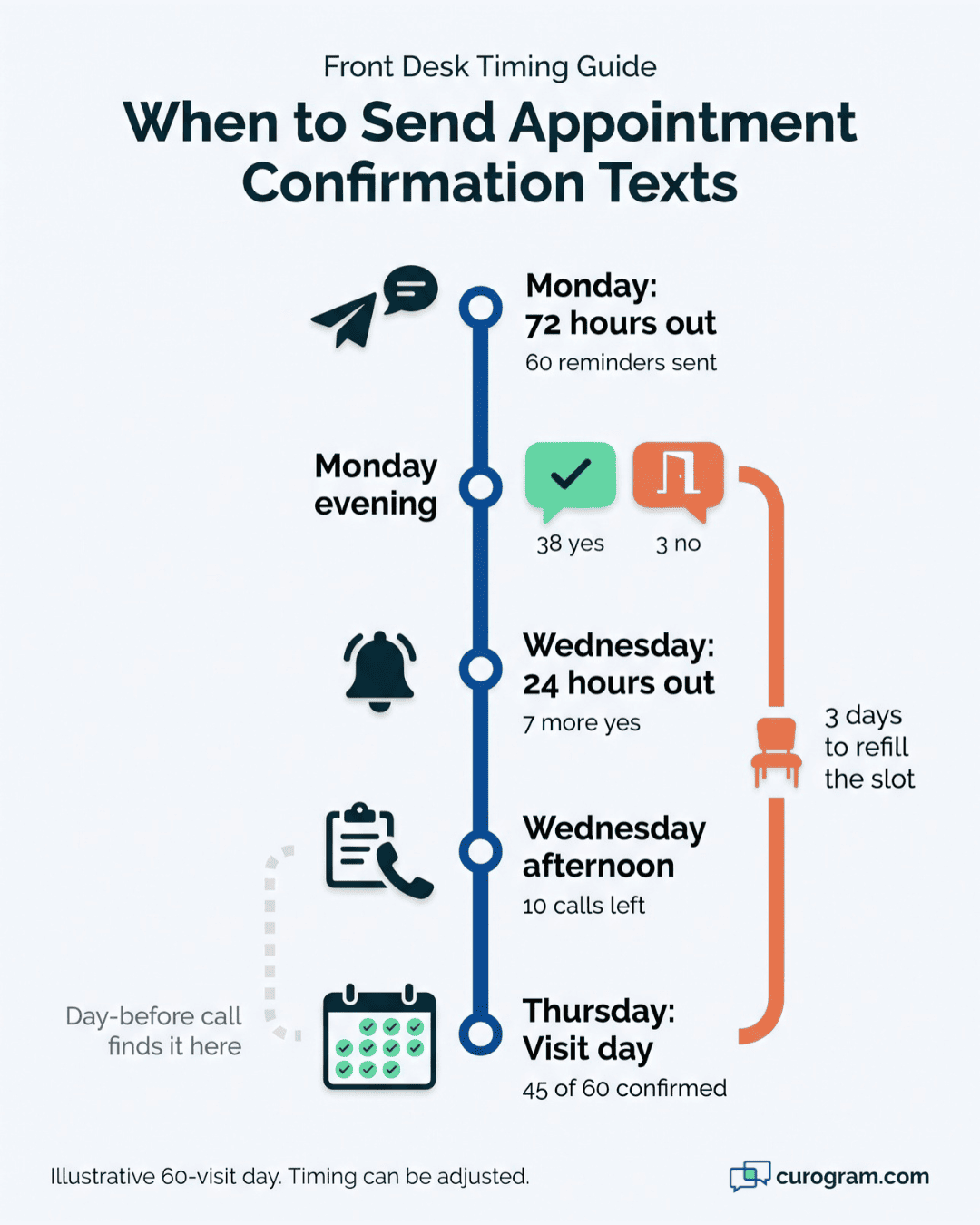
To see the loop at work, take an illustrative clinic with 60 visits booked for Thursday. The reply mix uses our 75% average confirmation rate.
- Monday, 72 hours out. The first reminder goes to all 60 patients.
- Monday evening. 38 patients reply YES. Their visits show as confirmed.
- Monday evening. 3 patients reply NO. Their slots show as open with three days still on the clock.
- Tuesday morning. 2 patients reply RESCHEDULE. Staff text back two open times and book the new visits in Lytec.
- Wednesday, 24 hours out. A second reminder goes to the 17 patients who haven’t answered. 7 more reply YES.
- Wednesday afternoon. 10 patients are still silent. They make up the call list.
By Thursday, 45 of 60 visits are confirmed. Staff placed 10 calls for the whole day’s schedule.
|
Task |
Manual call-down |
Text loop |
|
Confirmation calls placed |
60 |
10 |
|
When open slots are found |
Thursday at check-in |
Monday evening |
|
Where status is tracked |
Printout and sticky note |
Status on each visit |
What Staff Do With the 10 Calls
The short list arrives sorted by visit time, so 8:00 AM patients get called first. Each name shows which reminders went out and when, so staff don’t repeat a message the patient already ignored.
A typical call takes under a minute when it connects. If a number turns out to be a landline, staff fix it in Lytec right then. That patient gets a text next time, and the list shrinks a little each week.
Setting Up the Loop in Week One
Any small front desk can copy this setup. A practical first week looks like this:
- Check that mobile numbers in Lytec are current for the next two weeks of visits.
- Pick reminder timing. Start with 72 hours and 24 hours out.
- Edit the message wording to include the provider name and any prep notes.
- Name one person to check the queue at set times, such as 10:00 AM and 2:00 PM.
- Start a simple waitlist so NO slots have somewhere to go.
Curogram Highlight: Smart 2-Way Reminders
Smart 2-Way Reminders turn the daily call-down into a short queue your team checks twice a day. Reminders go out from the Lytec schedule at the times you set. A common setup sends one 72 hours out and another 24 hours out, with a day-of note for early slots.
Patients answer in plain words. YES confirms the visit, and NO flags the slot as open. RESCHEDULE starts a text thread with your front desk.
Patients who stay silent move to a short list, sorted by visit time, so staff know who to call first.
Every exchange is saved. If a patient says they never got a reminder, your staff can pull up the message, the send time, and the reply. That same record covers opt-outs, since a STOP reply ends texts to that number on its own.
Message wording is yours to edit. Add the provider’s name, a parking note, or a reminder to bring an insurance card. Specialty clinics often add prep steps, like fasting before lab work.
Staff learn the dashboard in under 10 minutes. It sits in the same platform as two-way texting, online forms, and text-to-pay, so the reminder portal drops off your list of logins.
Conclusion: Retire the Call-Down
Of all the workflow fixes open to a Lytec front office, moving the confirmation call-down to a two-way text loop pays back fastest. Your Lytec schedule, billing, and booking steps all stay as they are.
Lytec is for your schedule and billing. Curogram is for the patient’s five-second reply and the staff hours that reply gives back. It works alongside Lytec and your reseller as the communication layer, and it replaces the separate reminder portal.
Try one thing tomorrow. Put a timer on the call-down. Start it when someone pulls the list, and stop it when the last voicemail is left and the sticky note is written. Count the callbacks that come in after.
Every minute on that timer is time a text loop could have handled before your team sat down.
See it in action. Schedule a demo and bring your daily schedule size and your call count. In 15 minutes, we’ll show you how the confirmation workflow runs with your Lytec system.