
.jpg) Mira Gwehn Revilla
Mira Gwehn Revilla

- A patient seen at two sites needs each text to name the street address along with the time.
- A text with no reply option turns a quick question into a missed visit or a wrong-door arrival.
- Curogram sends one reminder format from every location. Each text comes from that site’s local number, with a map link and reply-to-confirm.
- A one-word reply updates the DrChrono schedule right away, so any front desk can see it.
- Based on our internal data, practices on this setup confirm more than 75% of appointments by text.
Patients think of your group as one practice. They see one logo, one set of doctors, and one patient portal.
So when Westside sends a thinner reminder than Midtown, the patient can’t tell it’s a settings issue. She only knows that one text told her where to go and the other left her guessing.
That gap is common in DrChrono groups, and it rarely starts with a bad decision. DrChrono treats each site as its own office, and each office’s reminders drift with whoever set them up.
One manager adds the suite number. Another turns off replies after a flood of “ok” texts. A third goes back to phone calls because the last template felt too long.
From the main office, those edits are easy to miss. The patient who sees an orthopedist at Midtown on Tuesday and a physical therapist at Westside on Thursday gets every version.
Our position is plain: reminder quality should be a group decision, set once and used at every location. In practice, that means consistent appointment reminder texts for DrChrono patients at every location.
Build them from one template, then fill in each site’s address, parking notes, map link, and local number. Each text should also be something the patient can answer.
Patients who split care across two buildings are the ones who need this most. They have two addresses to keep straight, two front desks, and often two sets of parking rules. When the reminder does the remembering, they show up at the right door.
When it doesn’t, the cost lands as wrong-building arrivals and silent no-shows. In the DrChrono schedule, both look like patient failure. Groups that move to one standard sequence confirm more than 75% of appointments by text, based on our internal data.
The Coin-Flip Reminder
In most multi-location groups, reminder drift happens one small edit at a time.
A new office manager starts and trims the message to fit one text segment. Someone turns off two-way replies because staff can’t keep up with the “thanks!” messages. A location that opened last spring copies settings from a site that has since changed its own.
After two years, each office’s reminder reflects its own history. No one has looked at all of them side by side.
DrChrono lets each office run its own setup, which is useful for hours and exam rooms. For patient messages, it means the experience depends on which door the patient is due at.
A reminder at one site might be clear and answerable. At another, it might be a bare line of text. A third site might send nothing, because the setting was never switched on.
One Patient, Two Very Different Texts
Take Dana, a patient in a 3-site orthopedic group. She sees her surgeon at Midtown and her physical therapist at Westside. Over one week, she gets these two reminders:
|
What the text includes |
Midtown reminder |
Westside reminder |
|
Sender name |
“Midtown Ortho” |
Unknown short code |
|
Street address |
1200 Park St, Suite 400 |
Missing |
|
Parking or entry note |
“Use the garage on 12th” |
Missing |
|
Map link |
Yes |
No |
|
Reply to confirm |
Yes |
No |
|
Reply to reschedule |
Yes |
No |
Why a Bare Reminder Turns Into a Silent No-Show
Dana did what a careful patient does. She tried to check. She called the main number, hit a phone tree, and waited on hold during her lunch break. Then she hung up.
Inside DrChrono, her Thursday visit still shows “Not Confirmed.” Westside’s front desk sees that status on the day’s list, next to a dozen others. Someone has to call each one, and most of those calls go to voicemail.
A patient who can’t answer the reminder can’t tell you anything. She can’t confirm, ask a question, or move the time.
Every one of those patients looks the same in the schedule: unconfirmed and at risk. Some will show up. Some won’t, and the open slot is gone by the time anyone knows.
Wrong Building, Right Time
Dana guessed. Her last visit was at Midtown, so she drove there. She arrived at 1:55 p.m., checked in, and learned her PT visit was across town.
Westside marked her late, then a no-show. Midtown’s front desk spent ten minutes sorting it out. Dana went home without the visit she had planned her afternoon around.
That’s what wrong location confusion, appointment after appointment, costs a group. It shows up in the schedule as a patient who didn’t come. Very little of it is the patient’s fault. The message gave her a time and nothing to place it.
Patients with care at two or more sites hit this more than anyone. Each extra location adds an address and a set of parking rules. It also adds one more chance that the confusing reminders different locations send will point them the wrong way.
Why the Worst Text Sets Your Reputation
Patients grade the group as a whole, and they remember the text that left them stranded. Someone reading one location’s reviews rarely knows which office a complaint came from. To them, it’s all one group.
Search makes this worse. Based on our internal data, 90% of new patient leads check a practice’s Google Business Profile before its website. So a Westside review that says “I never know where I’m supposed to go” sits in front of people comparing your group with the one down the road.
Groups spend real money on signs, logos, and a polished website. Yet the brand consistency patient messages carry gets far less attention. Patients read those texts more often than anything else you send, often every week of a care plan.
The Reminder Policy Engine
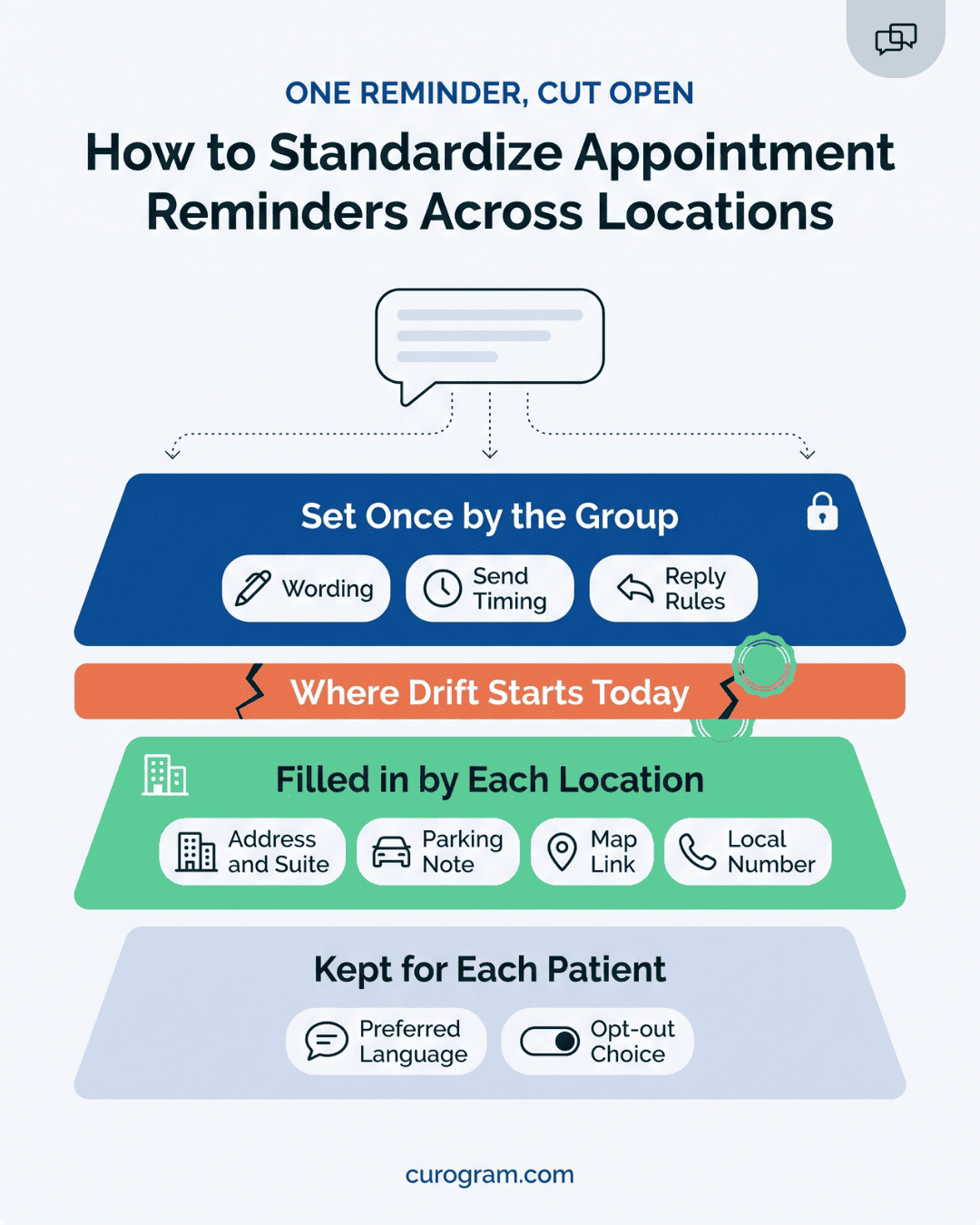
Every reminder turns on three settings: what it says, when it goes out, and what happens when the patient answers. Curogram moves those three settings up to the group level.
Your team builds one reminder policy. It covers wording, send timing (for example, three days out and one day out), and reply rules. Then each location plugs in its own details: office name, address, suite, parking note, map link, and local number.
From then on, a change to the policy reaches every site at once. If the group decides to add “Bring your brace” for post-op visits, it gets added once. If an office manager leaves, nothing about the reminder changes with her.
We call this the Reminder Policy Engine. Quality and behavior are set by the group. Local details stay local, because patients need them to reach the right place.
Each Location Keeps Its Own Number and Name
A patient who has texted Westside before should see Westside’s name and number on the next reminder.
Curogram sends each location’s reminders from that site’s own local number. Its sender name matches the sign out front. A Westside text shows Dana “Westside Ortho & PT,” a local area code, and an address she can tap.
People answer texts from numbers they know. A message from an unknown short code is easy to ignore or mark as spam. A message from the office she called last month gets read.
Local numbers also keep replies sorted. A text sent back to Westside’s number goes to Westside’s queue, so Midtown staff never have to forward it across town.
What a Reply-to-Manage Reminder Says
A sample reminder built from the shared template might read:
Hi Dana, this is Westside Ortho & PT. Your physical therapy visit is Thu, Oct 15 at 2:00 PM at 410 Harbor Ave, Suite 3. Park in Lot B behind the building. Map: [link]. Reply YES to confirm or RESCHEDULE to pick a new time.
Each part has a job. Office name and provider type tell Dana which visit this is. Address, suite, and parking note get her to the right door.
That map link opens directions on her phone. And the last line tells her exactly what to type.
Patients who prefer another language get the same template in that language, with the same local details filled in. A Spanish-speaking patient at Midtown gets the same clear message as everyone else.
Replies That Update DrChrono Right Away
A reminder is only as good as what happens after the patient answers. Curogram connects with DrChrono, so a reply changes the schedule as soon as it comes in.
When Dana replies YES, her Westside visit moves from “Not Confirmed” to “Confirmed.” Nobody at the front desk has to type it in or call her back.
Every location offers the same reschedule by text reply. Patient replies that ask for a new time go to the right office’s queue, and staff can offer open slots in the same thread. If Dana texts Midtown later that week, Midtown’s team can already see what changed at Westside.
For groups that run a shared inbox across sites, those replies land in one place. A floater at Midtown can cover Westside’s messages on a short-staffed morning.
Built for Patients With Two Addresses
Multi-location patients lean on reminders more than anyone. A patient with a surgeon at one building and a therapist at another keeps track of two calendars and two parking setups.
She often has two sets of check-in steps too. Every text she gets from your group either helps her keep those straight or adds to the mix.
With one standard reminder, she learns the format once. Line one always names the office. Next comes the address, and the closing line tells her how to answer.
By her third reminder, she reads it in five seconds and replies without a second thought. Changes stand out too: if a visit moves to Midtown, line one shows it right away.
One Practice, One Experience
Dana’s same week looks different once all three sites run on the group’s reminder policy. Dates and times below are illustrative.
|
Day |
Reminder sent |
Dana’s reply |
What DrChrono shows |
|
Saturday |
Midtown, 3 days out, with garage note and map |
YES |
Midtown visit: Confirmed |
|
Monday |
Midtown, 1 day out |
None needed |
Still Confirmed |
|
Monday |
Westside, 3 days out, with Lot B note and map |
RESCHEDULE |
Westside visit: flagged for a new time |
|
Monday |
Westside staff offer Fri 9:00 AM in the same thread |
9 works |
Visit moved to Friday, Confirmed |
|
Thursday |
Westside, 1 day out for Friday |
None needed |
Still Confirmed |
Walk through what changed. On Monday, Dana realized Thursday wouldn’t work because of a work meeting. Under the old setup, she would have had no way to say so. She’d either skip the visit or call and wait on hold.
This time she typed one word. The Westside desk saw her reply, offered Friday at 9:00, and she took it. Her Thursday 2:00 slot opened up two days early, which gave staff time to fill it from the waitlist.
On Friday, she drove to the right building, parked in Lot B, and checked in on time. Dana never called either office, and Midtown’s desk never got a confused phone call. Staff time for both changes came to under two minutes of typing.

Curogram Highlight: Reply-to-Manage Reminders
Reply-to-Manage Reminders are the core of how Curogram keeps every DrChrono location sending the same reminder. Your group builds one template. Each site fills in its own name, address, suite, parking note, map link, and local number.
A finished reminder tells the patient four things: which office, which visit, where to go, and how to answer. One-word replies confirm the visit. A reply like “reschedule” opens a thread with that location’s front desk, where staff can offer an open slot.
Replies sync with DrChrono as they come in. Confirmed visits show as “Confirmed” on the schedule without anyone typing it in. Rescheduled visits free the old slot early enough to fill it.
If your group runs a shared inbox, replies from every site land in one view. Staff at one office can cover another during a busy stretch.
Patients get reminders in their preferred language, using the same template and the same local details. Patients who opt out of texts stay opted out, and phone calls remain available for anyone who prefers them.
Timing is also set at the group level. If your policy sends reminders three days and one day before each visit, every location follows it. A new site that opens next year starts with the same reminder on day one.
Based on our internal data, practices on this sequence confirm more than 75% of appointments by text. In a group with several sites, every location runs that same sequence from its first day on the policy.
Conclusion: Every Location, Your Best Location
A patient due at your smallest site deserves the same reminder as one due at your flagship. Right now, in many DrChrono groups, that isn’t what happens. Each office sends whatever its settings have drifted into, and patients like Dana fill in the gaps by guessing.
We think reminders belong in the same category as your logo and your intake forms. The group sets the standard. Each location supplies its details. Every patient gets a text that names the office, gives the address, and can be answered.
DrChrono already does the hard work of running your schedule. Curogram handles the part patients see: a clear message and an easy way to answer it. Those replies flow back into DrChrono, so the schedule stays accurate at every site.
Start with a test this week. Book a test appointment at each of your locations under a staff member’s phone number.
Then line up the reminders side by side and check five things. Does each one name the office and give the street address? Is there a map or parking note? Can you reply to confirm, and can you reply to reschedule?
A location that fails even two of those five is still sending patients the coin-flip version.
When you’re ready to fix it, book a demo with Curogram. We’ll put your current reminders next to the standardized version for your own locations. Your team will see what patients at each site would get.