
9 min read
Office Closures & Prime Clinical | Notify Patients Instantly
Jo Galvez
:
February 13, 2026
By filtering data from Prime Clinical Intellect, your team sends a single secure SMS to every affected patient. A message like "Office closed due to weather" stops people from driving to a locked door.
This approach to Prime Clinical emergency messaging cuts front desk chaos and prevents angry walk-ins. It also sets the stage for rapid bulk rescheduling once the office reopens.
The result is a mass patient rescheduling workflow that turns a four-hour crisis into a five-minute task using HIPAA-compliant broadcast text tools built into Curogram.
Picture this. It's 6:45 AM on a Monday. You check your phone and see that a pipe burst at the clinic overnight. The office opens in just over an hour, and 60 patients are on their way.
What do you do first? Most practice managers grab the phone and start dialing. They call the staff. They call patients one by one.
Some don't pick up. Some show up anyway. By noon, the front desk is flooded with angry calls, and the day feels like a total loss.
This is the kind of morning no one plans for. But it happens more often than you'd think. Power outages, bad weather, a provider who wakes up sick.
These things don't wait for a good time. If your only plan is a phone tree, you're already behind.
The good news? There's a faster way. When you broadcast office closures through Prime Clinical using Curogram, you can reach every patient on your schedule in minutes.
In this guide, we'll walk through how to handle office closures without the panic. You'll see the exact steps to send automated inclement weather alerts, and manage replies without losing control of your inbox.
This can keep your patients informed and calm. Whether you're dealing with snow, a power outage, or a last-minute provider change, this workflow has you covered.
The Snow Day Panic
Every practice has faced it at least once. A sudden event forces the doors shut, and the team scrambles to reach dozens of patients before they leave home.
Here's what that looks like when things go wrong, and why the old way of handling it just doesn't work.
When the Morning Starts With Bad News
The 7 AM Wake-Up Call
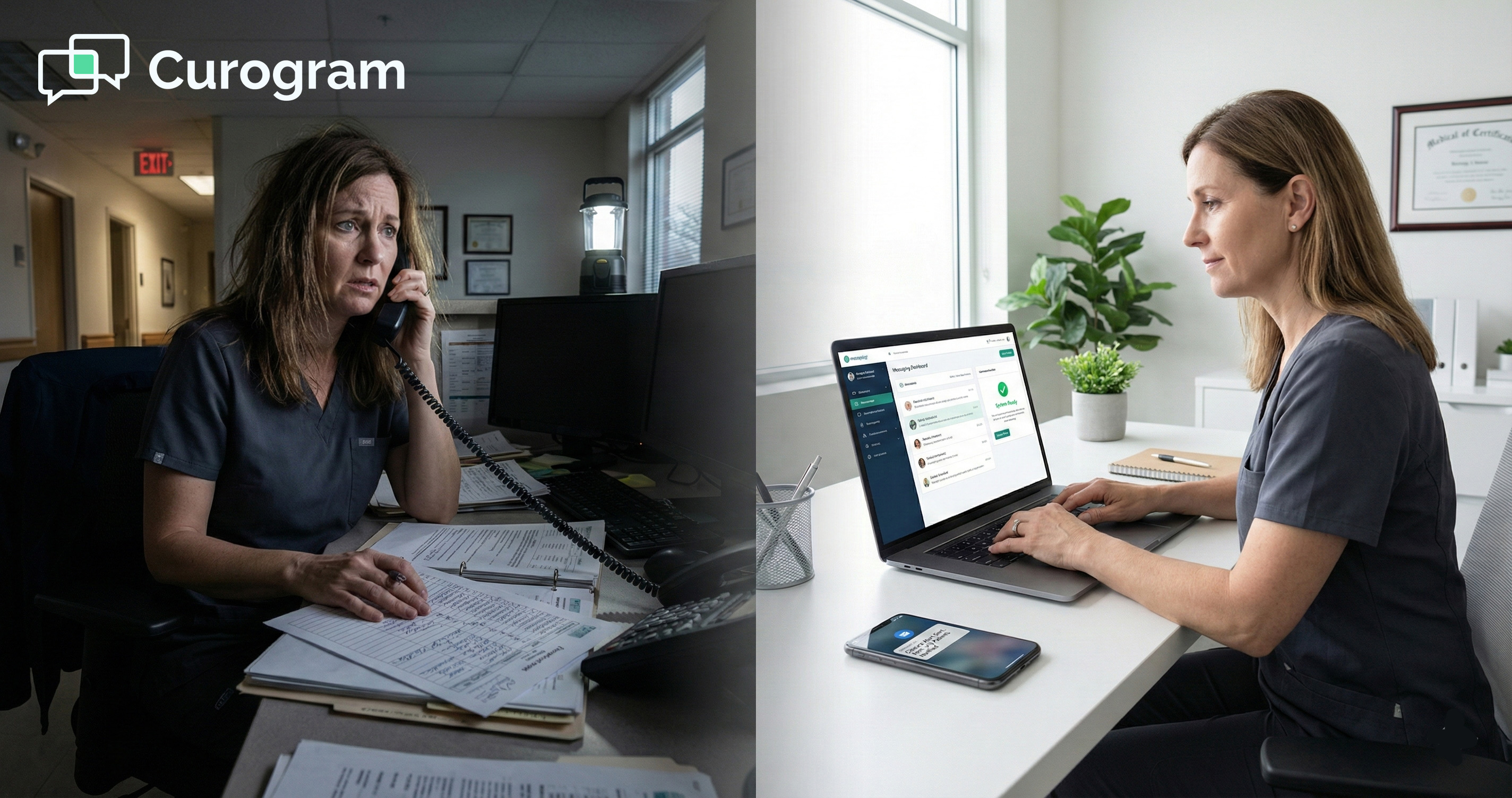
It's 7:00 AM. The power is out. Your office opens at 8:00 AM, and 60 patients are set to walk through the door. The phones are down. The EHR is offline. And you're staring at your screen trying to figure out what to do.
This is the moment where panic sets in. The practice manager starts texting staff from a personal phone.
Someone pulls up a printed patient list from last Friday, which is already out of date. The plan, if you can call it that, is to split the list three ways and start dialing.
The Staff Scramble
Three team members now sit in their kitchens, calling patients from their own cell phones. They have no script.
They have no way to track who picked up and who didn't. Some calls go to voicemail. Some ring with no answer at all.
Worse, patients who see a strange number calling at 7 AM don't pick up. They assume it's spam. So the staff leaves voicemails that may not get heard until it's too late.
What Happens When Patients Don't Get the Message
The Drive to a Locked Door
About 50% of patients never answer the call. They get dressed, drive to the clinic, and find a locked door with no note. Some wait in the parking lot, unsure if the office is running late or truly closed.
This is where trust starts to break. A patient who took time off work to make this visit now feels like the practice doesn't value their time. That feeling lingers.
The Fallout That Follows
Angry patients call back once they get home. They leave bad reviews. Some ask to transfer their records to a new provider.
Meanwhile, the front desk — which is already dealing with a crisis — now has to manage a wave of upset callers.
The real cost isn't just the missed visits. It's the hit to your online reviews, your patient trust, and your team's morale.
A single bad closure day can take weeks to recover from. All of it could have been avoided if you had reduced front desk phone volume during crisis events with a better system in place.

The Guide: The 3-Step Crisis Workflow
Handling a closure doesn't have to mean chaos. With Curogram and your Prime Clinical system working together, you can notify every patient in just a few clicks.
Here's the simple three-step process that turns a stressful morning into a calm, controlled one.
Step 1: Filter Your Schedule
Pull Today's Roster in Seconds
Open Curogram and connect to your Prime Clinical Intellect schedule. Use the filter tools to narrow the view. Set the date to "Today" and the location to the affected site — for example, "Main St."
In seconds, you'll see a clean list of every patient booked for that day at that location. No printing. No scrolling through paper files. Just a simple list ready for action.
Why Filtering Matters
If your practice has more than one office, you don't want to text patients at a location that's still open. Filtering keeps the message sharp and on target. Only the patients who need to know will get the alert.
This step takes about 15 seconds. It's the fastest way to make sure you're reaching the right people and no one else.
Step 2: Compose and Send Your Broadcast
Write a Clear, Short Message
Click "Send Broadcast" inside Curogram. Type a short, direct message. Something like: "Due to a power outage, our Main St office is closed today. We will contact you to reschedule."
Keep it simple. Patients don't need a long story. They need to know two things — the office is closed, and someone will reach out about their next visit.
Hit Send and Reach Everyone at Once
Once you hit send, the system sends out a HIPAA-compliant broadcast text to each patient on the list. Every message goes out as a private, one-to-one text.
No group chats. No shared threads. Just clean, direct contact.
The whole process takes under two minutes. Compare that to the four hours of phone calls it used to take. That's not a small upgrade.
That's a total shift in how you handle a crisis. This is the kind of mass patient rescheduling workflow that saves time and protects your patient trust.
Step 3: Watch the Results Roll In
The Front Desk Stays Quiet
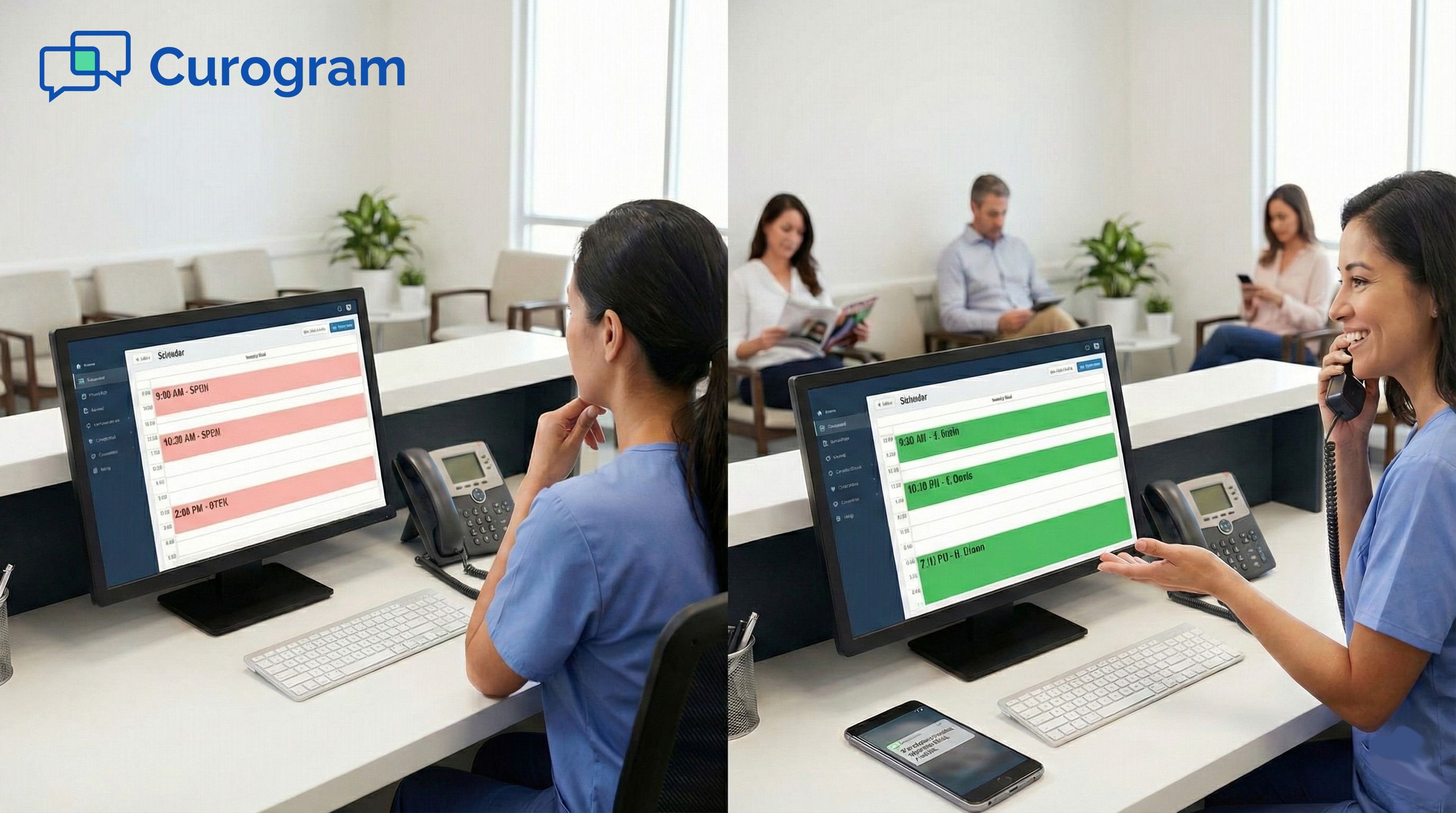
Within minutes, patients start replying. Some say "Thanks." Others ask about next steps. But the key thing is, they aren't driving to a closed office. They aren't calling in angry. They got the message, and they know what to expect.
Your front desk is quiet. Your staff isn't on personal phones. Your patients are informed. The crisis is contained.
Rescheduling Starts Right Away
Once you're ready to reopen, you can use the same broadcast tool to send a follow-up. Let patients know the office is back and invite them to rebook. Curogram makes it easy to manage this from one dashboard.
This is what Prime Clinical emergency messaging looks like when it's done right. No drama. No guesswork. Just a calm, fast response that keeps everyone in the loop.
Feature Focus: Preventing the Reply-All Nightmare
One of the biggest fears about mass texting is the "group chat" problem. Practice managers worry that patients will see each other's replies, or that the inbox will become a mess.
Here's how Curogram handles this and why it's nothing like a group text.
How Curogram Keeps Every Reply Private
BCC-Style Logic for Text Messages
When you send a broadcast through Curogram, each patient gets their own private message. It looks and feels like a normal text from your office because that's what it is. No other patient sees it. No other patient can reply to it.
Think of it like BCC in email. You write one message, but each person gets their own copy.
If Patient A replies with "Oh no! Can I come tomorrow?" only your staff sees that reply. Patient B never knows Patient A exists in this thread.
This is a big deal for any practice that takes patient privacy seriously. If you're using Prime Clinical, you already know that protecting patient data isn't optional, it's the baseline.
Curogram's design respects that by using HIPAA-compliant broadcast text delivery for every single message.
No group chats. No shared threads. No chance of a patient seeing another patient's name or health details. Every reply lands in a separate, private thread inside the Curogram dashboard.
What the Dashboard Looks Like After a Broadcast
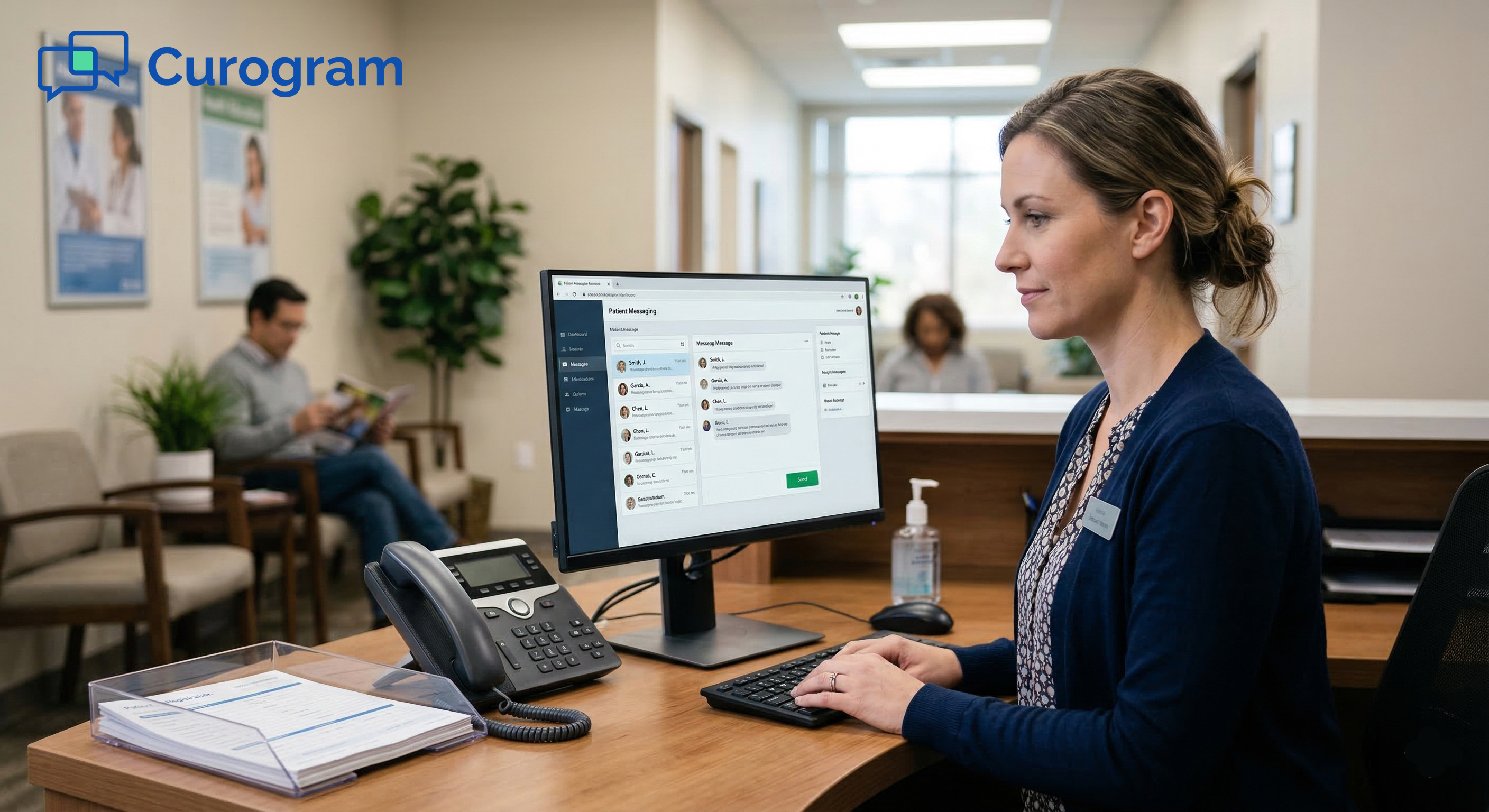
After you send a closure alert, replies start coming in. Each one shows up as its own thread. You can see Patient A's reply in one tab and Patient B's reply in another. Nothing is mixed or crossed.
This makes it easy to triage. If one patient has a pressing need — say, they were coming in for a pre-op visit — your staff can flag that thread and handle it first. Less urgent replies can wait.
The dashboard also lets you see who hasn't replied. If you need to follow up with certain patients, you know exactly who still needs outreach.
This level of control is what sets Curogram apart from a basic group text or phone blast.
Handling Replies Without Losing Your Mind
Copy-Paste Your Way Through the Queue
Let's be real. After a broadcast to 60 patients, you're going to get a lot of replies. Some will say "Thanks."
Some will ask, "Can I come on Thursday instead?" A few will have more complex needs.
The smart move is to prep a few standard replies before you send the broadcast. Something like: "We are rebooking all patients for Thursday. We will reach out with your new time shortly."
You can copy and paste this into each thread in seconds.
This approach lets you respond to dozens of patients in minutes. It's fast, it's consistent, and it keeps your tone professional. No one gets a different answer depending on who picks up the phone.
For patients who need more than a canned reply, your staff can switch to a full conversation right inside the same thread. There's no need to call them or open a new tool. Everything stays in one place.
Staying on Top of the Inbox
Curogram lets you mark threads as "resolved" once you've handled them. This keeps your inbox clean and makes sure nothing falls through the cracks.
After a closure event, your team can work through the queue in order and close each thread as they go.
This kind of organized, calm response is what it means to broadcast office closures through Prime Clinical the right way. You aren't just sending a message, you're managing the entire aftermath from one screen.
If your practice has used automated inclement weather alerts before, you know the message is only half the job. The other half is handling what comes after. Curogram gives you the tools for both.
Be Ready for the Unexpected
You can't predict when a provider will get sick or when the internet will go down. But you can predict how you will handle it. The practices that thrive aren't the ones that avoid bad days — they're the ones that respond well when bad days show up.
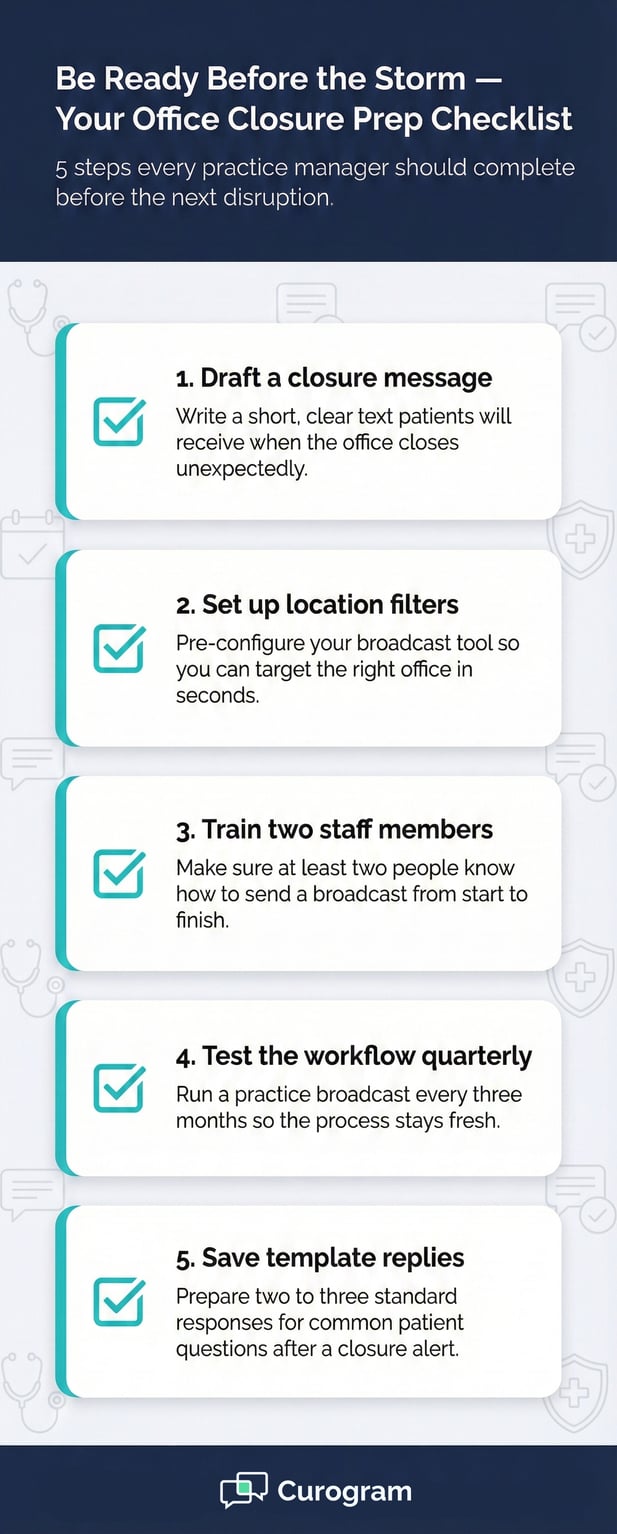
The best time to test your broadcast workflow is on a quiet Tuesday — not during a crisis. Set up your filters. Write a draft closure message. Save a few template replies for common patient questions. Make sure at least two team members know how to use the tool.
That way, when something does go wrong, there's no scramble. Your team opens Curogram, filters the Prime Clinical schedule, and sends a broadcast in under two minutes. The patients get the message. The staff stays calm. The day isn't lost.
Consider running a test broadcast once a quarter. Pick a small group of staff and walk through the steps. Time yourself. You'll be surprised how fast it gets once you've done it even once.
This kind of prep means that when a real storm hits — or a provider calls in sick at 6 AM — your team doesn't freeze. They follow the plan, and the crisis stays small.
When you can reduce front desk phone volume during crisis events, you protect your team from burnout. You protect your patients from a bad experience. You also protect your practice's name from angry online reviews that linger for months.
A single well-timed broadcast can save your staff hours of phone calls. It can stop dozens of patients from showing up at a locked door. And it can turn what used to be a full-day scramble into a calm, controlled morning.
Every practice will face a closure at some point. The question is whether you spend four hours putting out fires or five minutes sending one message. With the right tools in place, the answer is clear.
Disaster-proof your communication. See the Broadcast Tool to learn how Curogram protects Prime Clinical practices during emergencies.
Frequently Asked Questions
Curogram uses BCC-style logic that sends each patient a private, one-to-one text message. No patient can see another patient's reply or phone number. Every broadcast is sent as a HIPAA-compliant broadcast text, so patient data stays protected from start to finish.
Phone calls take hours and often go unanswered. Studies show that text messages have a 98% open rate, while phone calls reach about 50% of patients on the first try.
A mass patient rescheduling workflow through Curogram reaches everyone in under two minutes.
Each reply shows up as a private thread inside the Curogram dashboard. Staff can copy and paste a standard response to most threads and handle complex cases one-on-one. Threads can be marked as resolved to keep the inbox clean and organized.
When you set up automated inclement weather alerts, your team can send one message to every affected patient in seconds.
This stops patients from driving to a closed office, cuts down on angry calls, and lets the front desk focus on rescheduling instead of damage control.
Many practices have more than one office. Filtering by location makes sure you only contact patients at the affected site.
This avoids confusing patients at a location that is still open and keeps your Prime Clinical emergency messaging sharp and on target.